10.0.0 — Read a directory’s past sessions from the phone
A snapshot as of 10.0.0 (released 2026-10-11). It will go stale as the app moves on — that is expected, and the living reference is the guide each section links to.
New features
The phone lists a directory’s past sessions and reads them as a conversation
The grid’s “or resume here” list shows the earlier sessions of a directory, and their conversations are on disk. Now the phone can read them too: from a terminal open on the phone, list every earlier session of that terminal’s directory and open any of them as the same formatted conversation the terminal’s own conversation view shows (#3001, #2999).
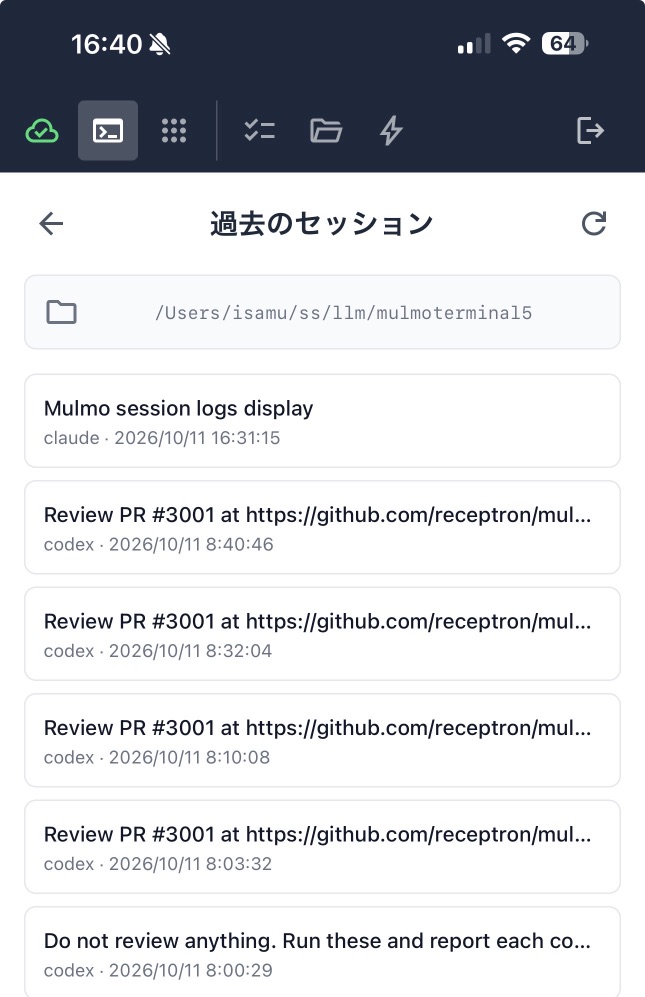
To try it:
- Update MulmoTerminal on the computer to 10.0.0 and restart it. The phone side is part of the MulmoServer site and arrives with its own update (receptron/mulmoserver#353).
- On the phone, open a terminal. A history icon appears in the page header, next to the files button. It only appears when the computer runs a MulmoTerminal that can answer — an older one shows no icon.
- Tap it. You see the directory’s earlier sessions, newest first: their title, which agent, and when.
- Tap one. The conversation opens at its newest turn. Load earlier turns at the top reads further back, a page at a time, until there is nothing older.
What to expect:
- Every agent’s sessions are listed. Claude, Codex, Cursor and Copilot conversations open; Antigravity, Grok and Muse sessions are listed dimmed as “cannot be read yet”, because MulmoTerminal has no reader for their conversation yet.
- It is read-only. Resuming a past session is still done from the grid on the computer.
- The phone never sends a directory: it names the terminal you have open, and the computer looks its directory up. A session id that is not in that directory’s list is refused.
Nothing to configure. More: Phone.
Every code block in rendered markdown has a copy button
The conversation pane, the wiki browser, skills, What’s new, release notes and blueprints now put a copy button in the top-right corner of each code block. It copies the block exactly as written, so a ` ```markdown ` block keeps its # and - (#3000, #2998). The same button on the canvas (the right pane) now actually copies too (#3002).
Nothing to configure. More: Conversations.
A Preview code block copies in one press
In the Files pane’s Preview, a code block’s copy button now copies at once and shows a short notice at the bottom of the window — that it was copied, how many lines, and the first line — like everywhere else (#3004, #3003). The text still comes from the file, never from the page.
The confirmation dialog now opens only when a one-press copy is not possible: the block holds characters you cannot see (they are written out as <U+…>), the browser has no clipboard access or refuses it, or the block can no longer be read.
More: Feature reference.
What looks different
- A history icon in a phone terminal’s header, beside the files button (needs the MulmoServer update).
- A copy button in the corner of code blocks in the conversation pane, wiki, skills and the other rendered markdown views.
- Preview’s copy button no longer ends in “…”, and copying shows a notice instead of a dialog.
- Token gauges say
at limitin the warning colour where they used to sayn/afor an account or rotation token that has hit its usage limit, and the default login is labelled/loginwhen named logins share the row (#2997, #2995). More: Token rotation.
Under the hood
- Audio and video play when opened by path. A media file opened through a terminal link (
/api/files/raw) was served under the same sandbox as other files, which stopped the browser playing it. Audio and video are now served like PDFs; every other type stays sandboxed (#2993). - JingleScript scores carry an author and a copyright, written into the rendered audio’s tags and the MIDI file; the tool fills them only with what you give it (#2996).
- Nothing else needs doing.