10.7.0 — Copy a whole file, see which file is open, and reopen recent files
A snapshot as of 10.7.0 (released 2026-10-16). It will go stale as the app moves on — that is expected, and the living reference is the guide each section links to.
Everything here is in the Files view — the file tree and editor that opens beside a terminal, or full-screen from the Files button in the header. Nothing needs configuring.
New features
Copy the whole file with one button
The Files header has a new copy button (two overlapping sheets). Press it and the whole text of the open file goes onto the clipboard — what the editor holds, including edits you have not saved yet. A small notice at the bottom says how many lines were copied and shows the first one (#3060, #3058).
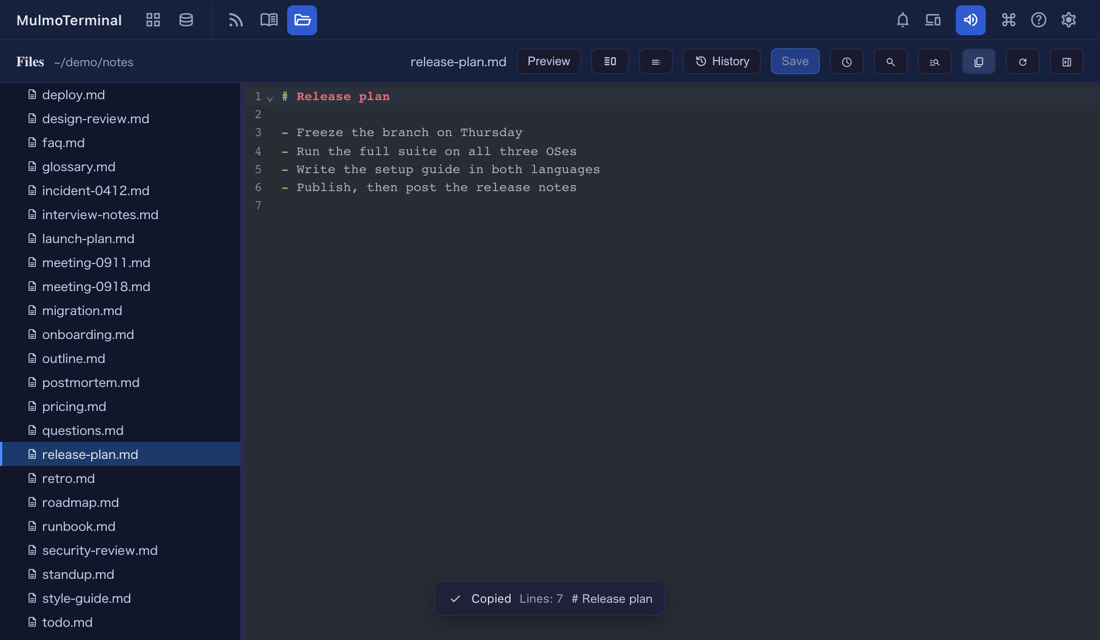
Why it is there: selecting the text with the mouse and copying it did not give you the text. A drag that starts in the line-number column copies the numbers instead. The button copies the text itself.
To try it: open any file in the Files view, press the copy button, and paste somewhere else.
The button does not appear when the page has no clipboard access — when MulmoTerminal is opened over plain http:// from another machine (a LAN address).
Reference: Feature reference.
Reopen a file from “Recently opened”
The clock button in the Files header lists the files you opened in this folder, newest first. The file open now is marked. Pick one and it opens again, even if you closed its tab long ago (#3062).
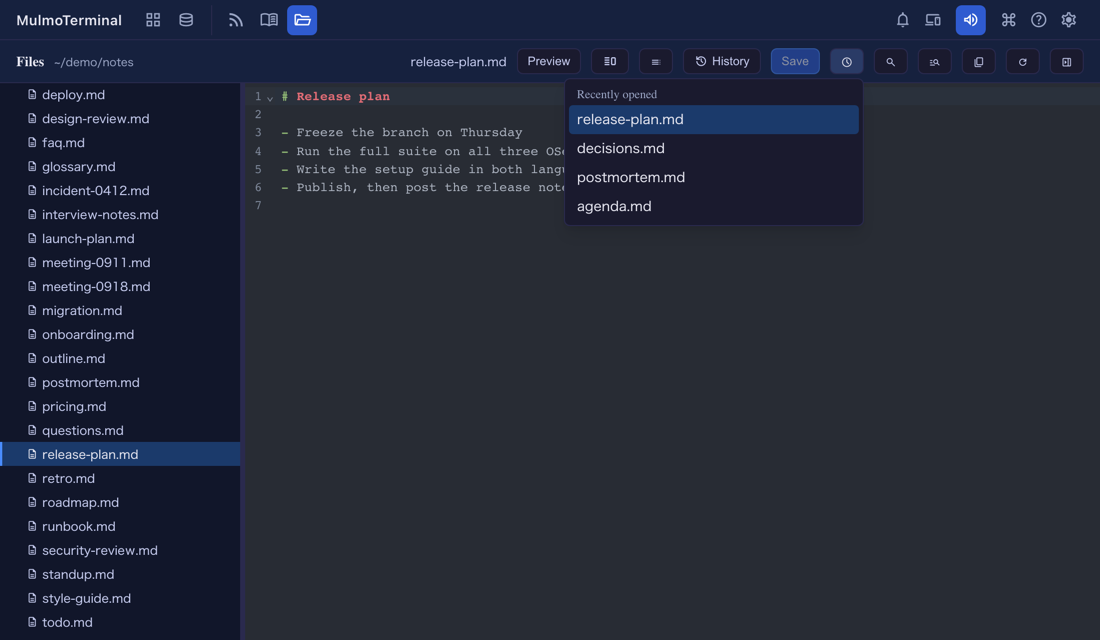
- The list is kept per folder and in this browser: it survives a reload, but it does not follow you to another computer or browser.
- This is not the History button beside it. History shows earlier versions of the one file that is open; Recently opened shows which files you had open. The button’s tooltip says so too.
To try it: open two or three files, close their tabs, then press the clock button.
Reference: Feature reference.
What looks different
- The open file stands out in the file tree. Its row now has the selected colour and a blue bar on its left edge (both pictures above show
release-plan.md). Before, it was meant to be marked but the mark never actually appeared, so in a folder with many files you could not tell which one was open (#3061). - When the Files pane comes back (you reopen it, or reload the page) and the open file’s folder is expanded, the tree scrolls so that its row is on screen. A folder you had closed stays closed.
- Two other places had the same never-appearing highlight and now show it: the active tab in Settings, and a toolbar menu button while its menu is open.
- The copy button and the clock button are new in the Files header (see above).
Under the hood
- Dependency updates (#3063). Nothing to do.
- Screen readers: the Files header’s menus (History, Outline, Recently opened) and the find-by-name list now each have their own id, so with two Files panes open each button points at its own list.
- Nothing needs doing.