8.3.0 — A Skills viewer, and apps from a collection keep MulmoTerminal’s look
A snapshot as of 8.3.0 (released 2026-10-01). It will go stale as the app moves on — that is expected, and the living reference is the guide each section links to.
New features
See every skill in one place
Claude skills live in several places — your own ~/.claude/skills, the plugins you have installed, and the .claude/skills folder of each project — and until now the only way to see them all was to look through those folders by hand. 8.3.0 adds a Skills screen (#2816). Nothing to configure:
- In the toolbar, open More features (the
widgetsicon) and pick Skills. - The left column lists the places: User (~/.claude/skills), then each plugin that is switched on, then every folder a terminal has run in that has skills. A folder with no skills is not listed.
- Pick a place, and the middle column shows its skills with their descriptions. A plugin’s skills are shown by the name you run them with, such as
team-tools:deploy-preview. - Pick a skill, and the right column shows its
SKILL.md.
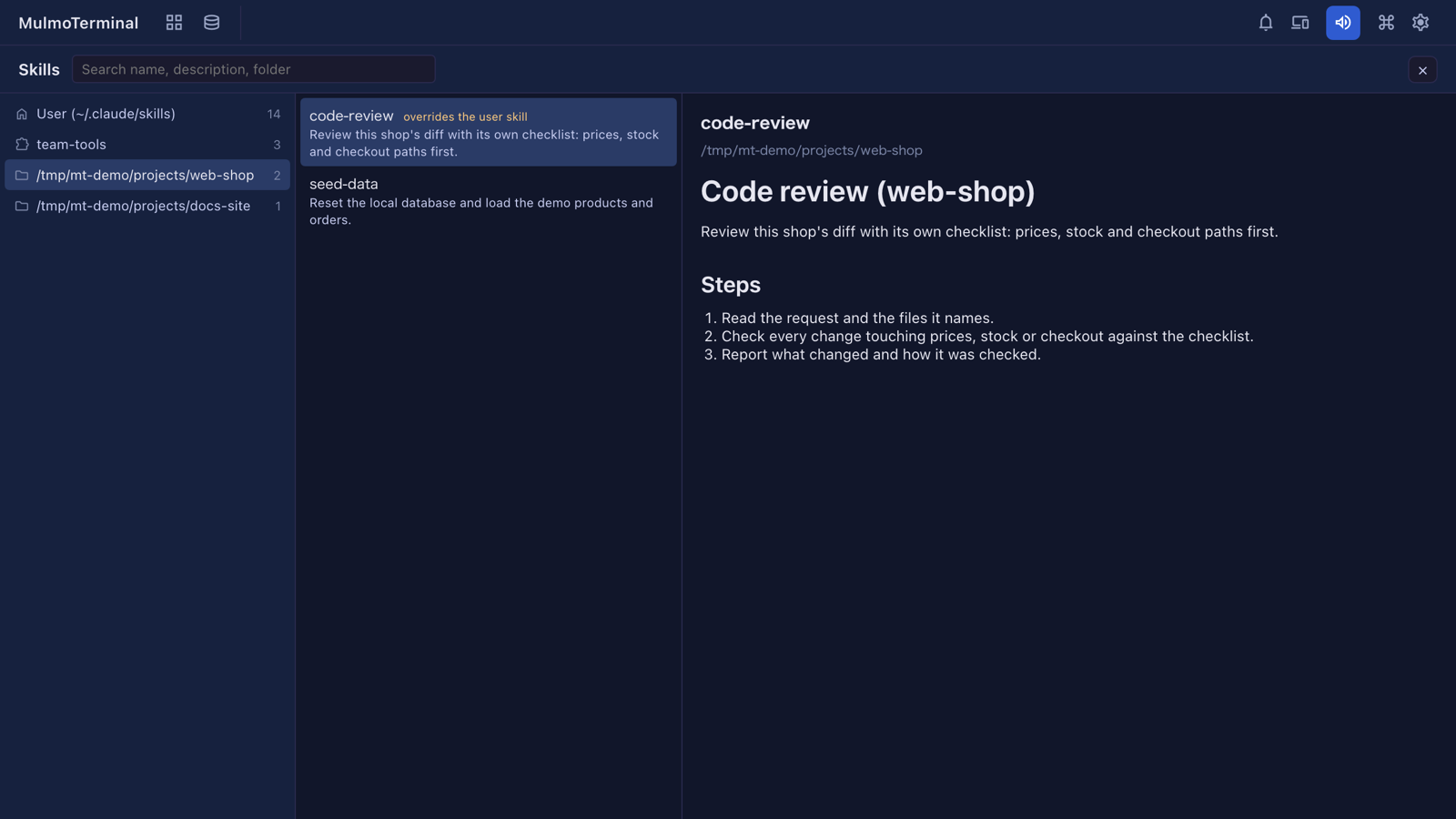
- Search with the box at the top. It looks at the name, the description and the folder, and every word you type has to match. Both the left and the middle column narrow as you type, so
deployshows only the places that have a matching skill. - A folder’s skill with the same name as one of your own is marked overrides the user skill: in that folder, Claude runs the folder’s version.
- The screen reads the files each time it opens, so a
SKILL.mdyou just edited shows as it is now. - Only plugins installed for your user and switched on in
~/.claude/settings.jsonare listed. A plugin installed for a single project is not shown yet.
Press Esc or the close button to go back. See Basics.
An app made from a collection keeps MulmoTerminal’s look
When you build an app from a collection with Blueprints, the interview now asks 見た目 (the look) (#2820):
- The same as MulmoTerminal (the default) — the app looks as the collection does when you open it in MulmoTerminal: the same header, toolbar, table, kanban, calendar and record panel, in the same colours, with the collection’s icon.
- Soft, crisp or calm — templates that keep those shapes and change only the colours and how round the corners are.
A new step, Match the look, restyles the screens the earlier steps built and writes the choice to DESIGN.md in the app’s folder; the steps after it follow that file. Its check builds the app and confirms the styles are really in the build. See The look.
What looks different
- More features has a new Skills entry, between Blueprints and Worklog (#2816).
- A build from a collection has one more step, Match the look, and one more question in the interview (#2820).
Under the hood
- The guide has a Feature list: every capability MulmoTerminal has today, one line each with the release it arrived in (#2819). It is kept current at each release.
Nothing here needs doing.