From your phone
Your agents keep working while you’re away from the desk. The companion app — mulmoserver.web.app, a PWA you add to your home screen — is a remote control for the MulmoTerminal running on your Mac: watch a session’s live screen, answer it, and start a new terminal, all from your phone.
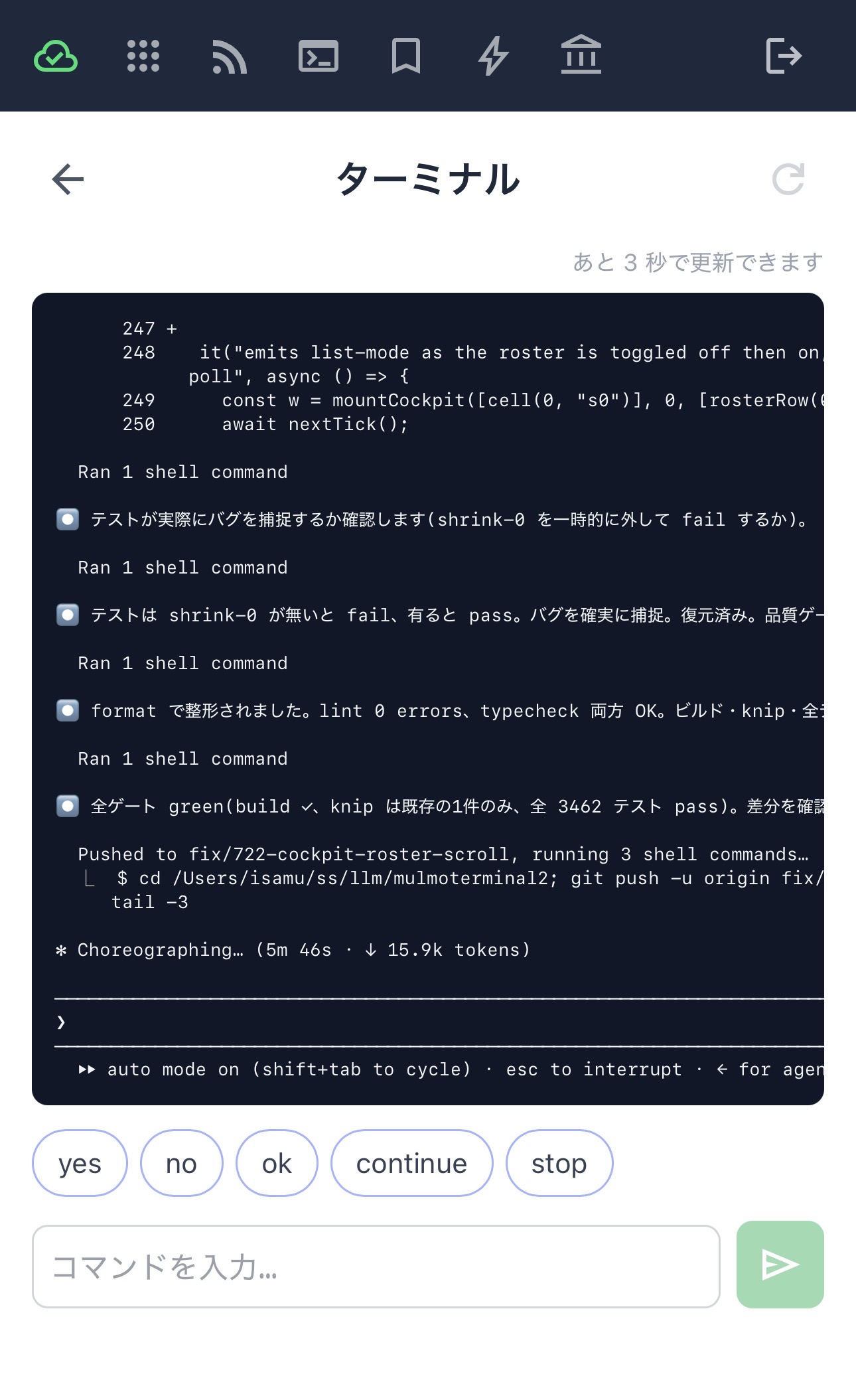
Everything here needs the RemoteHost link connected on the terminal side. That’s the same connection Mobile notifications uses, so if push already works you’re set.
Connecting
- On the Mac, open the RemoteHost menu in the toolbar and press Connect — it signs in with your Google account.
- On the phone, open mulmoserver.web.app and sign in with the same account. Add it to your home screen so it behaves like an app.
The toolbar shows the link’s state: Online, Reconnecting…, or Offline with the last error. A laptop that slept or changed networks reconnects on its own; if it gives up, you get a bell notification so you find out before the phone does.
What you see
Picking a session shows its live screen, headed with what the grid cell on the desktop shows: the directory, the git branch, the AI summary of the session, and the prompt that started the latest turn.
If that directory is a GitHub repository, its name links to the repo. The link goes to the repository’s front page rather than the current branch — a branch you haven’t pushed, or one that was deleted when its PR merged, would just 404.
Each row in the list is named by your session note when there is one, then the session’s AI title. A running session without either is named from its conversation — the title the agent wrote, the latest prompt, the first thing you asked — and a brand-new one by where it runs (mulmoterminal · codex). Its id shows only when there is nothing else to go on.
The list offers the grid’s terminals. A session that survived a MulmoTerminal restart is still viewable — the screen comes from tmux — but you can’t type into it, because the process that was relaying your keystrokes is gone.
Answering
- Quick replies — tap yes / no / ok / continue / stop for the answer an agent is usually waiting for.
- The agent’s own suggestion — when Claude offers a follow-up as dim ghost text, it appears as a chip. Your phone has no Tab key, so the chip is how you accept it.
- Type — the text box sends a line as if you’d typed it at the keyboard.
A question Claude asked
When a Claude session stops to ask you something, the dialog it drew in the terminal also arrives as a card under the screen — the question, and every choice as a button.
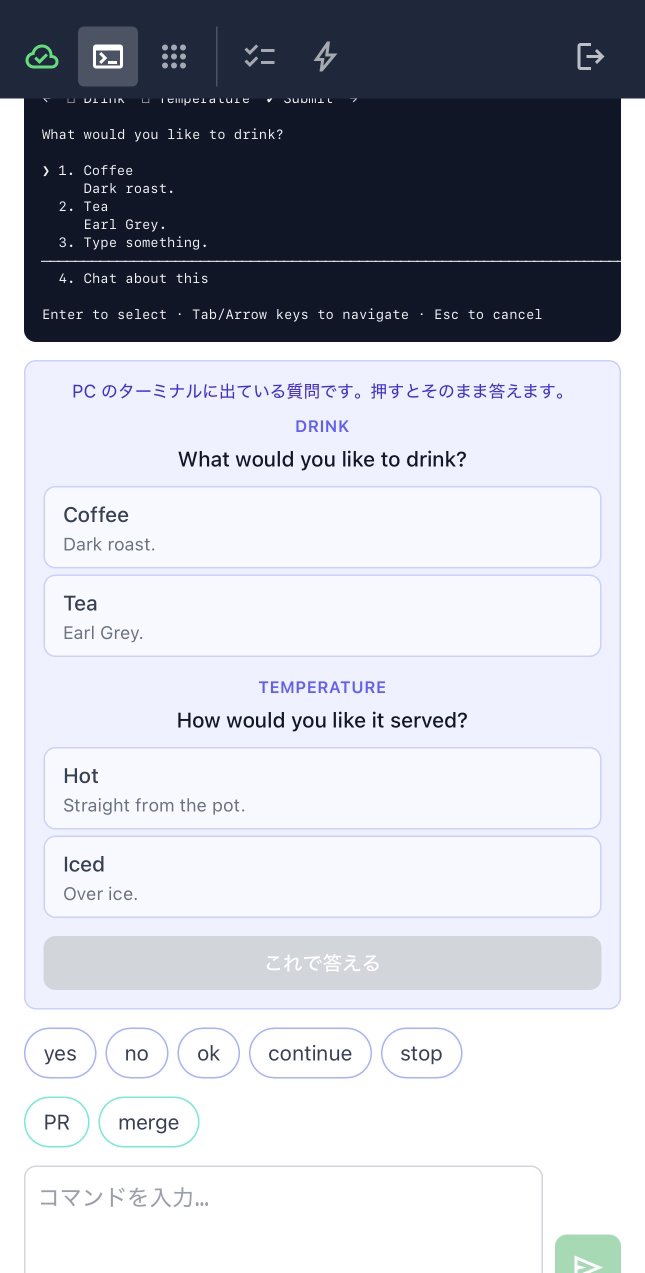
Tapping a choice presses the arrow keys and Enter in the real dialog, the same way the desktop’s question pane does. The dialog above stays where it is and updates as the answer lands, so whichever end you answer at wins.
- Ask several at once and each gets its own group, as the screenshot shows. The button under them goes when every question has an answer.
- A question on its own can be answered in your own words. A text box appears under its buttons, for the dialog’s own Type something row. Several questions at once, or a multi-select one, get buttons only.
- Nothing to turn on. The desktop’s question pane is off until you ask for it, because it lets a pane type into a terminal you are sitting at. The phone is the opposite case: it has no arrow keys, so without the card the question could not be answered from here at all.
- Claude sessions only, and only for questions Claude asked with its question tool. A permission prompt is a numbered menu like any other, and you answer it by tapping its number.
Your own phrases (quick commands)
The replies above are short. For the sentences you send over and over — “PR作って”, “マージして”, “テスト通して” — add your own chips.
Settings → Phone quick commands. Give each one a label (the chip’s face, keep it short) and the text it inserts. They’re empty until you add some, so nothing appears on the phone until then.
Tapping a chip fills the input box — it does not send. You still press send, so a mistap costs nothing and you can edit before committing.
You can also scope a chip to the kind of session it suits: tick claude, codex, or shell, and it only appears there. Leave every box unticked and it appears everywhere — which is what you want for “マージして”, while git status belongs to a shell alone.
The same list lives in quickCommands in ~/.mulmoterminal/config.json if you’d rather edit the file.
Starting a new terminal
From a session you’re viewing, you can start another terminal in the same directory — a plain shell, claude, or codex. It’s the fastest way to act on something you just read on the screen without walking back to the Mac.
You choose the program; you don’t choose the directory. It’s always the directory of the session you were looking at, and the phone never sends a path — that’s deliberate, so a phone (or anything that got hold of your account) can’t start a process wherever it likes.
A MulmoTerminal browser tab has to be open on the Mac. The grid of terminals lives in the browser, so that tab is what actually opens the new cell — the host cannot do it alone. With no tab connected the phone tells you so instead of failing quietly.
The new terminal appears on the Mac’s grid and in the phone’s session list.
Notifications
Getting pinged when a task finishes — and the iOS/Android setup — is its own page: Mobile notifications — including which moments push, if they feel too frequent.