10.1.0 — Switch a file to the Canvas view inside the Files pane
A snapshot as of 10.1.0 (released 2026-10-12). It will go stale as the app moves on — that is expected, and the living reference is the guide each section links to.
New features
The Canvas view opens inside the Files pane, with the tree kept beside it
Before, pressing Canvas in the Files pane replaced the whole right pane with the cell’s Canvas. Closing the Canvas then closed the file tree as well, and you had to start again from Browse files in the app. Now the Canvas button switches the open file to the Canvas view in place: the tree stays on the left, and pressing Canvas again goes back to the editor (#3009, #3008).
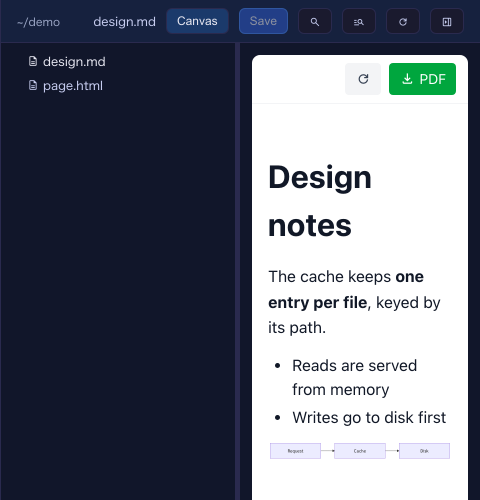
To try it:
- Enlarge a terminal and open its files (the folder button in the cell header, or Browse files in the app from the path menu).
- Open a Markdown, HTML or MulmoScript file.
- Press Canvas in the pane’s header. The file is drawn the way the Canvas draws it — diagrams, maths and all — while the tree stays where it was. Right-click a row and choose Open in the Canvas to do the same for another file.
- Press Canvas again to go back to the editor.
What to expect:
- Unsaved edits are saved first. If someone else changed the file meanwhile, the usual conflict banner appears and the view does not switch.
- Nothing is added to the cell’s own Canvas: what you look at here is yours, not the agent’s.
- It is the pane beside a cell only. The full-screen file view keeps Preview.
More: Feature reference.
The Canvas view is remembered
A file you left in the Canvas view comes back in the Canvas view after you close and reopen the pane, or reload the page — the same way Preview has always been remembered (#3013, #3011). If you opened the pane by clicking a path in the terminal, that file comes up as text, and the remembered Canvas views are not restored that one time.
Nothing to configure.
Cmd/Ctrl+click on a terminal path opens a new tab
Hold Cmd (macOS) or Ctrl (Windows / Linux) while clicking a file path in terminal output, and the file opens in a new tab of the Files pane, keeping the tab you were on. A plain click still replaces the front tab (#3007, #3005).
More: Feature reference.
What looks different
- The Files pane’s Canvas button stays pressed while the file is in the Canvas view, and the editor-only buttons (Edit/Preview, Changes, history, outline, @) step aside until you switch back.
- Pressing Canvas in the Files pane no longer turns the right pane into the Canvas, so closing it no longer takes the tree away.
Under the hood
- A path with a line number shows the line. Clicking
design.md:42in the terminal on a file that is in the Canvas view now opens it on the editor at line 42, as it already did for Preview; a click with no line keeps the Canvas view (#3012, #3010). - The 10.0.0 page has its screenshot of the phone’s past-sessions list (#3006).
- Nothing else needs doing.