Basics — what you can do in the grid today
- The grid is “a board of agents”
- Launching an agent or a shell (launcher form)
- Reading a cell — “what each agent is doing and where”
- Tiling many, pages, and reordering
- Zooming into one (the cockpit roster)
- Mixing agents in one grid
The grid is “a board of agents”
The grid view is the screen for supervising many AI coding agents (Claude Code, Codex) in parallel. Vibe coding with one agent needs one terminal; going parallel is what makes this screen necessary. Each cell is one independent agent (or terminal). While one is thinking, you push another cell forward and pick up only the ones that call you — amber for a cell awaiting input or a permission, a green ring for a turn that finished and awaits review — the goal is to run many agents solo instead of babysitting them all.
The grid is the app. http://localhost:34567/ lands here (the URL settles on /terminals), and there is no second screen to switch to: focusing on one agent is zooming its cell, which gives it the window and opens the GUI panel (Canvas) beside it — where that agent’s tool calls render as diagrams, forms, images, documents and slides rather than printed text.
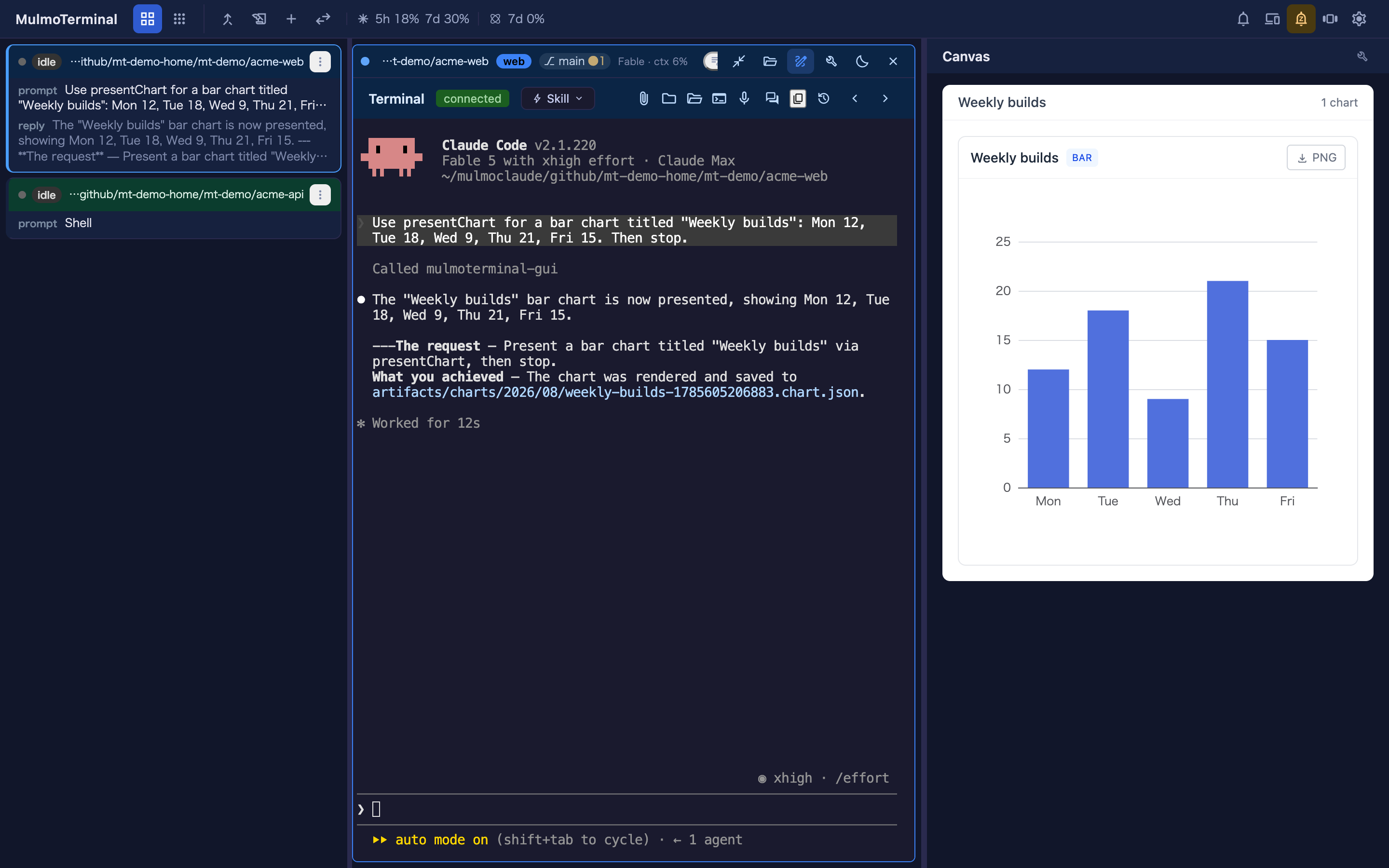
Changed in 4.0.0. Until 3.x there was a separate single view at
/chatwith its own toolbar. It is gone; everything it had is in the grid, and/chatnow lands on the grid like any other unknown URL. → 4.0.0 setup guide
The top toolbar is one row, split by a rule into which view you are in and what you do inside it:
| Group | Buttons |
|---|---|
| Switch view (left of the rule) | Grid and Collections — the two places to be |
| Pinned collections and feeds (left of the rule, its own group) | The favourites you promoted to the toolbar — one press each, from either view. Nothing shows until you promote one (→ A favourite you open all day) |
| Inside Collections | Feeds, Wiki, Accounting, Files appear once you are in the content section |
| Inside the grid | Pull requests, Worklog, New terminal, cell ordering, the status tally |
| Always | sound, roster / filmstrip, Settings |
A full-screen surface (Collections, Wiki, PRs, Accounting, Files) returns to the view you opened it from when you close it.
Launching an agent or a shell (launcher form)
Empty cells in the grid show a launcher form. This is where you choose what to run and where.
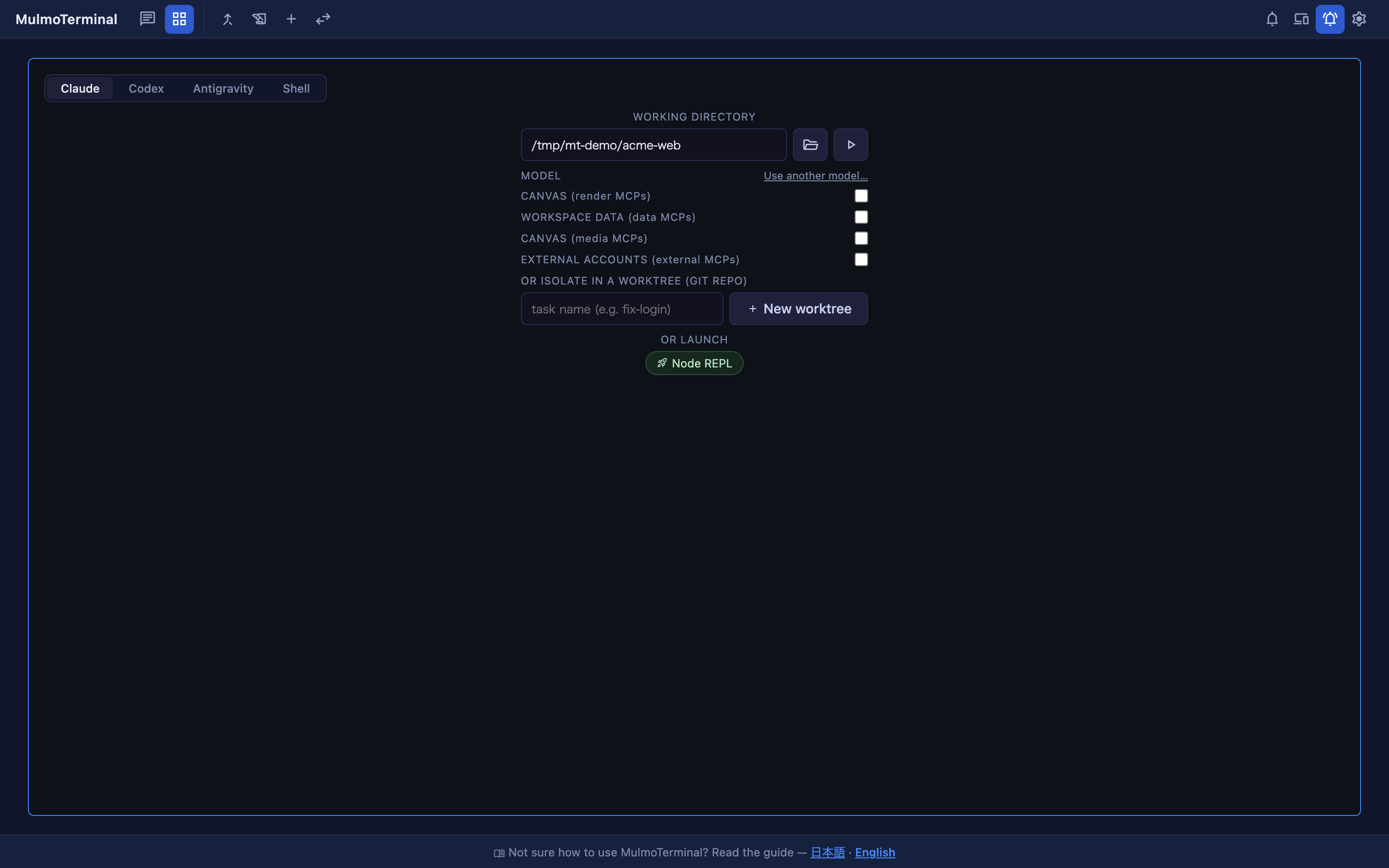
| Part | Role |
|---|---|
| Agent Picker (Claude / Codex / Antigravity / Grok / Muse / Copilot / Cursor / Shell) | Choose what runs in this cell — an agent, or Shell: your OS default shell ($SHELL), with nothing to install and nothing to configure. This is the control that starts a real agent session; the launch commands below run your own command line verbatim. What each agent needs, how it resumes, and how it reaches the GUI tools: → Which coding agent |
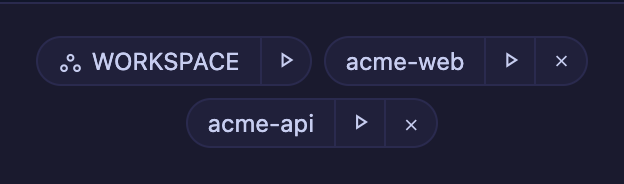
| WORKING DIRECTORY | Enter the working directory (the play button launches it). Frequently used directories are offered as clickable cwd preset chips that fill the field (the chip’s play button launches right away). They are recorded from wherever you launch, except worktrees — one of those is a single task’s branch, deleted with the task. A WORKSPACE chip always leads that row (→ which directory to launch in) |
| Model picker (when Claude is selected) | Pick the backend / model for this session only (→ providers) |
| Canvas / Workspace data / External accounts toggles (with an agent selected) | Register a GUI tool group (render / data / media / external) as an MCP server for the directory, not for this session. With Claude, Codex or Copilot picked they are absent while the workspace is selected — everything is available there without registering anything. With Antigravity, Grok, Muse or Cursor picked they stay, in the workspace too: registration is those agents’ only way to get GUI tools anywhere (→ Antigravity, Grok, Muse and Cursor register everywhere) |
| OR ISOLATE IN A WORKTREE | In a git repo, enter a task name and hit New worktree to create an isolated worktree and launch there. Existing worktrees are listed below it |
| OR RESUME HERE | Conversations that already exist in this directory, for the agent the Agent Picker has selected — click one to continue it. The heading names the agent when it is not Claude (or resume a codex conversation here) |
| OR LAUNCH | Start a configured launch command (codex, htop, anything) as a persistent terminal |
A worktree holds one session. It is tied to a branch, so it is never started twice: a row with nothing on it starts the first session, resume continues the one it already has, and in use cannot be clicked because that session is open in another terminal. → Isolating work in a git worktree
OR RESUME HERE works the same way: a session marked ● open is being viewed somewhere and is refused, because opening it here would detach whoever has it. “Somewhere” includes another browser tab and a second mulmoterminal running on this machine.
● running means it is still alive with nobody attached — what a server restart leaves behind, since sessions survive it. The row can be resumed as usual, and the stop button beside it ends that session without touching the conversation: the transcript stays, so the same row can be resumed later. What is lost is whatever the agent was doing at that moment, which is why it asks first. Rows marked ● open have no stop button — close those from the terminal that has them.
The list belongs to the picked agent. Each agent keeps its history in its own place — Claude in ~/.claude/projects, Codex in ~/.codex/sessions, Grok in ~/.grok/sessions, Antigravity in its own brain directory, Muse and Copilot each in a SQLite index of their own, Cursor under ~/.cursor/projects — and only that agent can continue what it wrote. So switching the Agent Picker replaces the list, and a conversation is always resumed by the agent that started it. Two limits worth knowing: Shell shows no list (a shell has nothing to resume), and the Antigravity list can only show conversations MulmoTerminal started — agy records nothing that maps a conversation to a directory, so the directory comes from MulmoTerminal’s own log and a conversation started in the Antigravity IDE will not appear here.
Change the directory and these lists empty at once. Everything under WORKING DIRECTORY — OR RESUME HERE, the worktree rows, OR RUN A SCRIPT — was read for the directory that was in the field at the time, so the moment you type or pick a different one they are replaced by a single Loading this directory's sessions, worktrees and scripts… row until the new ones arrive. Rows left standing through that wait would be the previous directory’s under the new directory’s name, and clicking one resumes exactly the session it offers.
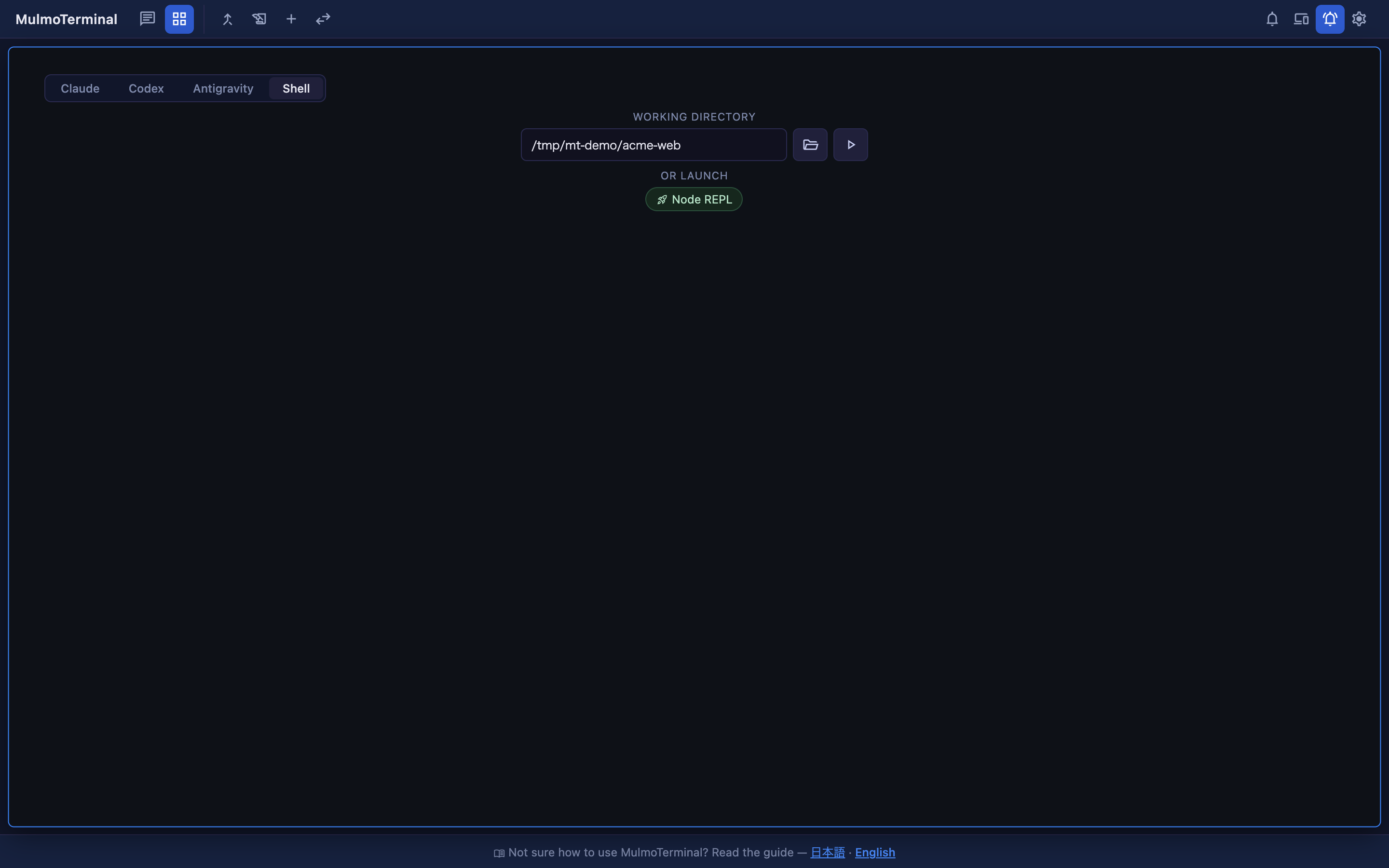
Shell takes the same working directory and the same play button as an agent. A shell has no model, no MCP registration and no worktree, so those rows disappear while it is picked — and the cell it opens is a persistent terminal (running / exited), not an agent session.
Which directory to launch in — the workspace or a project
What you put in WORKING DIRECTORY decides which GUI tools that cell gets. The reference point is the workspace — the server’s default working directory (CLAUDE_CWD). It is settled in this order: --cwd, then the CLAUDE_CWD environment variable, then the directory you ran npx mulmoterminal in. When you lose track of which one it is, the Workspace: … line printed at startup is the answer. Collections, Wiki and Accounting read and write there whichever cell you are in (only the Files pane beside an enlarged cell follows that cell’s directory).
The directory decides WHICH tools a cell gets; the agent decides whether the workspace rule applies to it at all. How an agent can be handed tools is a property of its CLI, not a setting — the full account is How each one reaches the GUI tools.
| The agent | How it can be handed tools | In the workspace | In a project directory |
|---|---|---|---|
| Claude / Codex / Copilot | a flag on the session itself | Every GUI tool, with nothing to register | Only the groups registered for that directory — register one with the MCP toggles |
| Antigravity / Grok / Cursor | a config file in the working directory | only what that directory registered — the workspace is no exception | only what that directory registered |
| Muse | one plugin installed per machine, narrowed back per session | only what that directory switched on | only what that directory switched on |
A Claude session reads its own MCP config in either directory (.mcp.json, claude mcp add, your claude.ai connectors). Before 4.4.0 a workspace cell was the one place that could not see them (→ 4.4.0 setup guide). Your MCP servers (userMcpServers) are merged into a Claude or Copilot session that carries every GUI tool — which in the grid means one launched in the workspace, and only that. A cell in a project directory does not get them, and neither does Codex (what Codex is handed is MulmoTerminal’s own GUI tools; its own MCP config is a ~/.codex matter).
To keep doing what you did in the single view in 3.x, launch in the workspace. That is the directory the single view ran in, so a Claude, Codex or Copilot cell started there carries the same thing — drawing into the Canvas, working with collections, with no toggle to turn on. Any of those three is the same — pick one in the Agent Picker and launch in the workspace (→ 4.3.0 setup guide). Pick Antigravity, Grok, Muse or Cursor and the workspace buys you nothing: they take what the directory registered wherever they run. A launch command is not one of these, even when the command you typed is claude: a launch command runs verbatim, so it is a terminal with that program in it and carries no GUI tools. The Agent Picker is what starts an agent session.
If you also run MulmoClaude, make the workspace the directory MulmoClaude uses (
~/mulmoclaudeby default). It is not the directory you cloned MulmoClaude into — it is the shared place both apps keep their data. To make it the default, runnpx mulmoterminalfrom there or pass--cwd ~/mulmoclaude— it is settled when the server starts, so changing it means restarting it. The preset skills and help docs are seeded only when the default working directory is that workspace. → Environment variables (CLAUDE_CWD/MULMOCLAUDE_WORKSPACE_PATH)
The workspace is one chip away. A WORKSPACE chip always sits at the head of the launcher’s chip row, apart from the recent directories and named for its role rather than its folder, with an icon of its own. Its play button launches there; the chip itself only fills WORKING DIRECTORY. While the workspace is selected with Claude, Codex or Copilot picked, the MCP toggles are gone, replaced by GUI TOOLS — All of them, automatically, because there is nothing left to register. Pick Antigravity, Grok, Muse or Cursor and the toggles come back, workspace or not — see below.
In a project directory, register what you need with the MCP toggles. Canvas (render / media) is the panel beside an enlarged cell, Workspace data (data) is collections and the books, and External accounts (external) is Google, X and the like. A toggle registers the directory, not the session, so it takes effect on the next session started there — it never reaches a session already running.
Antigravity, Grok, Muse and Cursor register everywhere — the workspace included
These four have no such rule. Even in the workspace, their GUI tools are whatever that directory has registered — so an agy, grok, muse or cursor session in the workspace with nothing registered has no GUI tools at all, while the same session in a project you once flipped Canvas on for has them. That is the shape of the surprise: presentDocument works in your project and is missing in the workspace, which is the one place everything is supposed to work.
The reason is structural, not an oversight. Claude, Codex and Copilot are handed a per-session MCP config when the session starts (--mcp-config, -c mcp_servers.…, --additional-mcp-config), so the workspace can simply hand them everything. None of the other four takes such a flag. Agy, grok and cursor read their servers from a file in the working directory — agy from .agents/mcp_config.json, which MulmoTerminal writes from that directory’s toggles (→ 2.8.0 setup guide), and grok from .grok/config.toml, which MulmoTerminal registers through grok’s own grok mcp add -s project so the rest of your file is left as you wrote it. Muse takes neither: its servers come from a plugin installed per machine, so MulmoTerminal registers one plugin holding all four groups and narrows each session back to what its directory switched on (→ 4.7.0 setup guide). Nothing in any of that can be given to one session in a directory and not another, so there is nothing for “you are in the workspace” to change.
Cursor reads .cursor/mcp.json, and it is the only one of these that needs each SERVER approved. (Muse needs approval too, but once, for the whole machine-wide plugin.) MulmoTerminal writes that file from the directory’s toggles the first time you start a cursor cell there, and then approves each entry it wrote through cursor-agent mcp enable — because cursor will not load a server it has not approved and says nothing when it skips one: the cell simply reports that it has no MCP servers. An MCP server you configured yourself in that file is left exactly as you wrote it.
To give an Antigravity, Grok, Muse or Cursor session GUI tools — in the workspace or anywhere else:
- In an empty cell’s launcher, pick Antigravity, Grok, Muse or Cursor in the Agent Picker.
- Put the directory in WORKING DIRECTORY (the WORKSPACE chip, if that is where you want it).
- The Canvas / Workspace data / External accounts toggles stay visible — they do not disappear for these the way they do for Claude, Codex and Copilot. Flip on what you need: Canvas (
render) is the one that carriespresentDocument,presentChart,presentHtmlandpresentForm. - Launch a new session. A toggle registers the directory, so it never reaches a session that is already running — the one you have open keeps whatever it was given at spawn.
You can check it from the outside: <that directory>/.agents/mcp_config.json (Antigravity), <that directory>/.grok/config.toml (Grok) or <that directory>/.cursor/mcp.json (Cursor) should now list a mulmoterminal-render server; for Muse the registration is machine-wide and shows in muse plugins list instead. In a cursor cell, cursor-agent mcp list says ready once the entry is also approved — which the cell does for you as it starts. In the session, the tool is called mcp__mulmoterminal-render__presentDocument — or mcp__plugin_mulmoterminal_render__presentDocument in a Muse cell. None of the three ever sees the mt id a workspace Claude, Codex or Copilot session gets.
Reading a cell — “what each agent is doing and where”
The header of a running cell has two rows. Together they capture that agent’s status, location, and current work.
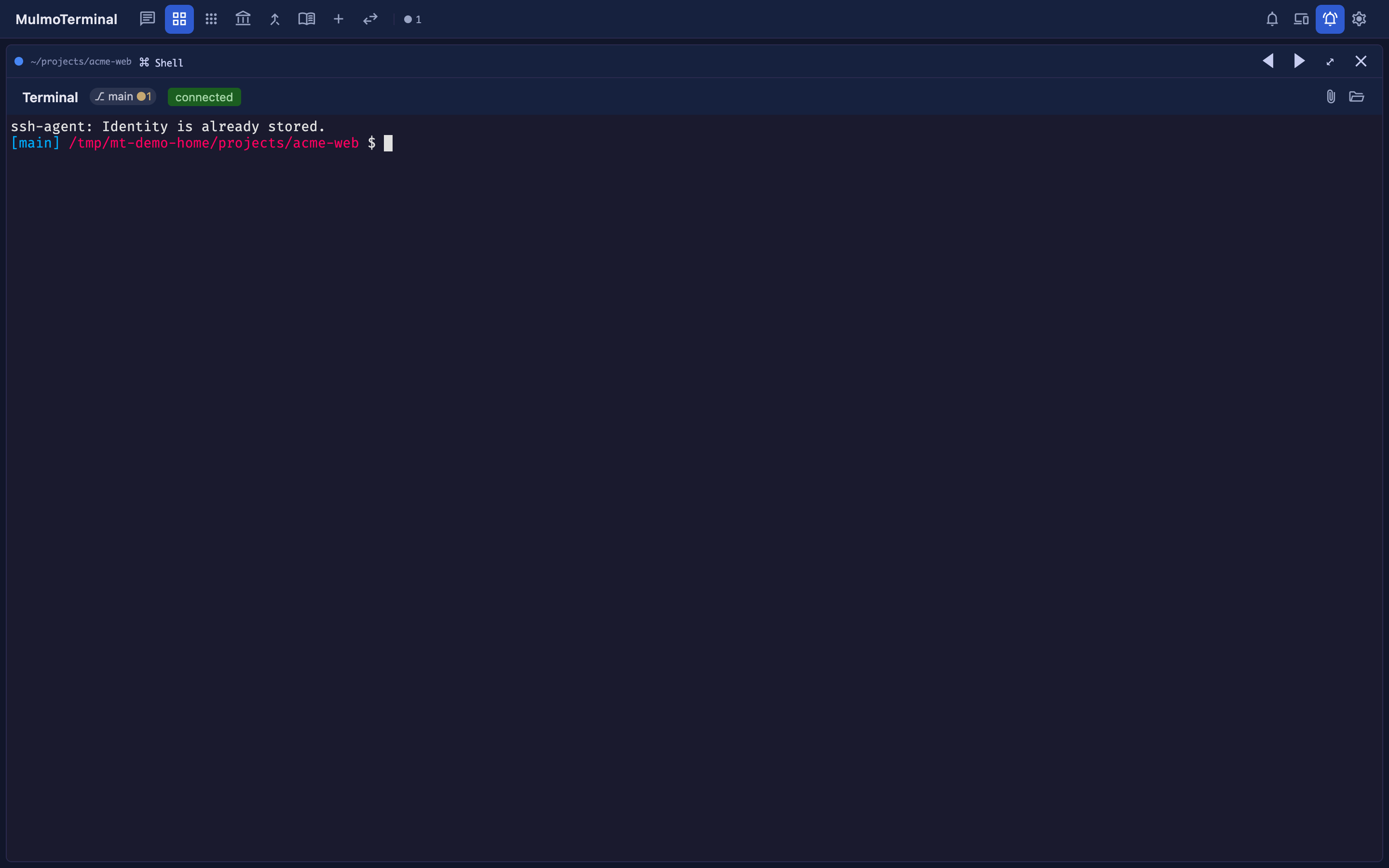
- Row 1 (what to compare): status dot, project badge, git chip (
⎇ branch ●changes), model / context size, what that agent is doing right now, a note you can write, and reorder / expand / set aside / close. - Row 2 (what to read and do): the directory path — click it for a menu with Reveal in the file manager, Browse files in the app (the file tree beside this terminal — it enlarges the cell first if it is tiled), New terminal here, and the repo’s Repository / Issues / Pull requests / Actions — then Run, Skills, Insert a file path (the default buttons — replaceable in config), and Activity timeline (tool-call history). The connection state appears here only while it is connecting or has failed.
Looking for one file? The file tree’s header has a search button: type part of a name and pick from the list, and it opens with the tree expanded down to it. In a git repository the candidates come from git, so anything your .gitignore excludes is not offered; a directory that is not a repository is walked instead — no ignore file is read, and only a short list of directories nobody authors by hand (node_modules, virtualenvs, caches) is skipped; the panel says so. A files-find shortcut opens the same panel — and opens the pane first if it is closed — but nothing is bound by default.
Looking for one line, not one file? The button beside it searches inside the files. Matches are grouped by file with the matching lines under them, and picking one opens the file and puts the cursor on that line. The query is taken literally unless you turn on the regular-expression toggle, and case is smart: a lower-case query matches either case, one with a capital in it does not — the Aa toggle forces the strict reading. The same .gitignore rule as above applies, and a file your agent created a moment ago is searched too. A file you have open with unsaved edits is searched from what is on your screen, not from what is on disk — it is marked unsaved, and its line numbers are the ones you can see rather than the ones in the saved file. That last part applies to the default literal search; turn on the regex toggle and that one file is left out entirely, with a note asking you to save it, because running a half-typed pattern on the page can freeze it. Its out-of-date matches from disk are dropped either way, so nothing ever sends you to a line that has moved.
What you typed is picked out in every line, and a line whose match falls past the right edge of the row is scrolled along so you can see it — without that, a match at the end of a long line showed you everything except the thing you searched for. The result you are on opens onto the lines around it, so you can tell whether it is the one you want without leaving the panel; for the file you are editing those come from what is on your screen, like the match itself. Above the list is what it all adds up to, which you would otherwise have to scroll to the bottom to learn. The files-search shortcut opens it, and is likewise unbound by default.
Right-click a row in the file tree to put that file’s path at the terminal’s cursor — Insert relative path or Insert absolute path, and Shift+F10 on the row does the same from the keyboard (arrows move between the items). Directories work too. The relative one appears only while the tree and the terminal are in the same directory, since that is when it means the same thing at both ends.
Status shows up as color. A bluish border means working (thinking), amber means awaiting input or a permission (Needs input), a green ring + glow means a finished, unreviewed turn (Done — review; the thumbnails and roster rows use that same green), and neutral means idle. A sound plays too, so you know you’ve been called without watching the screen. This is the heart of the grid.
Tiling many, pages, and reordering
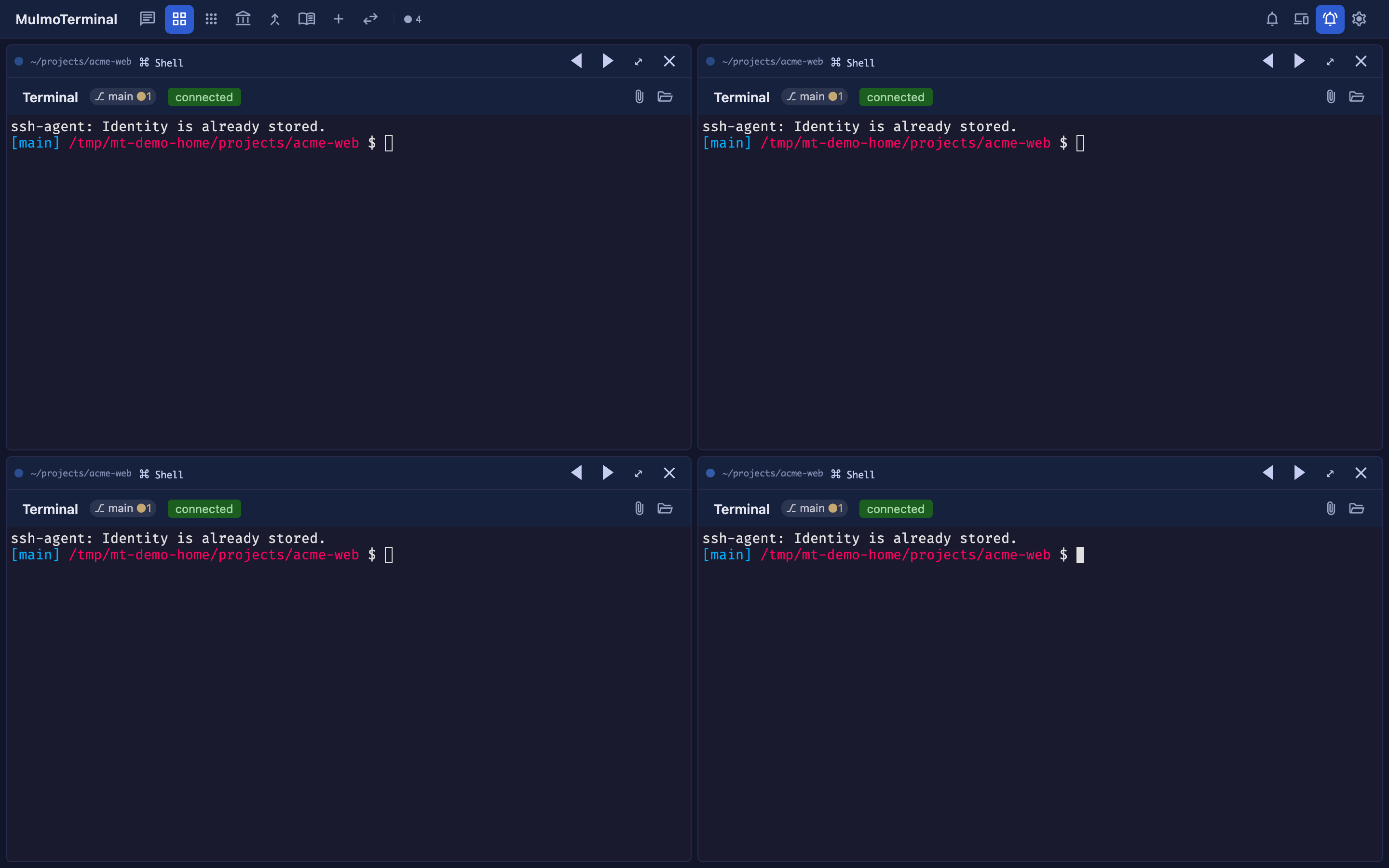
- Add cells from the launch panel: the toolbar’s + opens it on the workspace, and the + on a terminal’s own header opens it on that terminal’s directory. The cell appears when you start something. Up to 9 cells per page; overflow moves to the next page (tab).
- The ordering button cycles three modes — auto (attention-first: cells needing you float up), manual (arrange them yourself with each cell’s move buttons), and priority (the order each project declares as
orderPriorityin its.mulmoterminal.json, see Configuration).
Zooming into one (the cockpit roster)
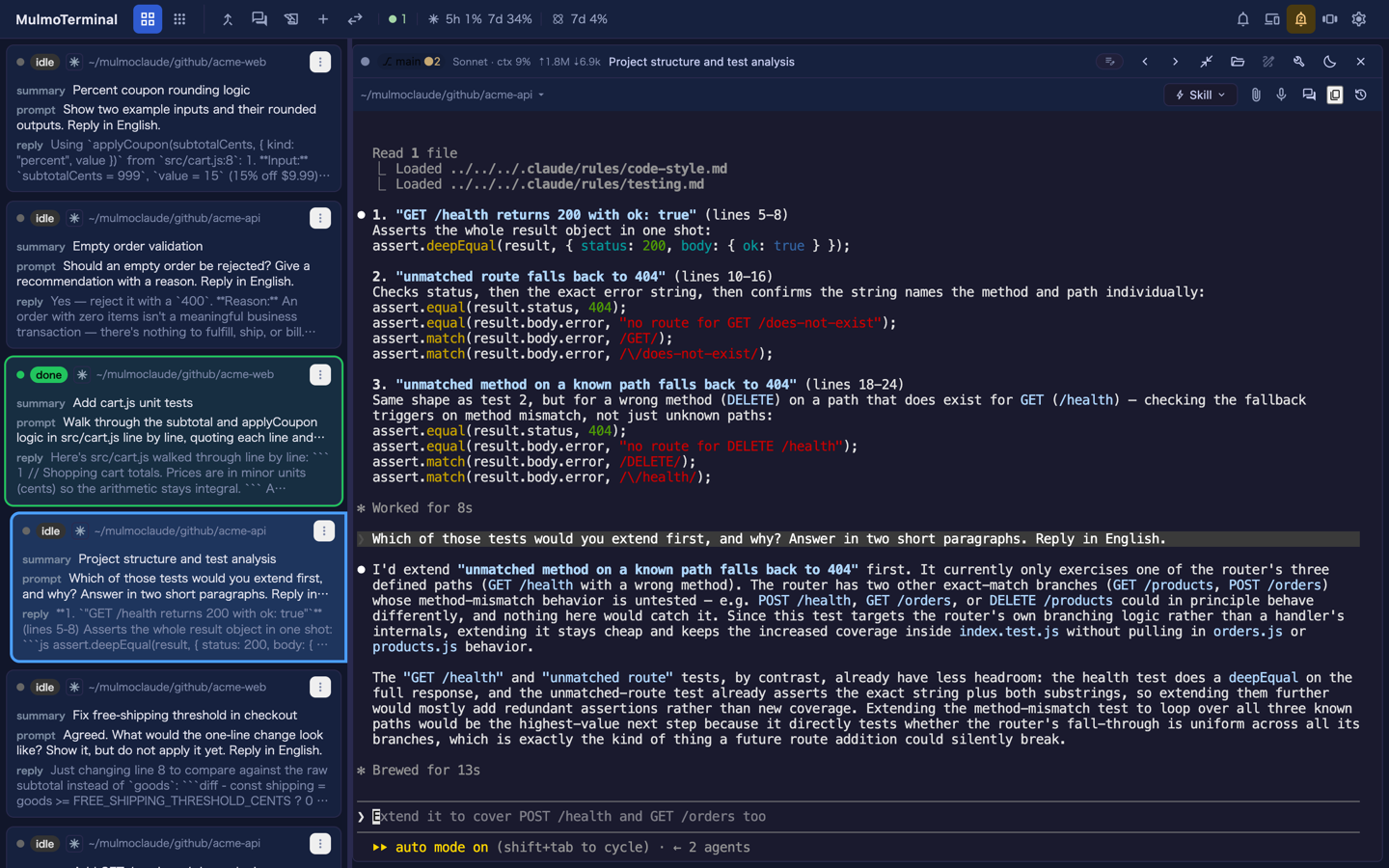
Hit a cell’s Expand (expand) to show that agent large — and next to it, the cockpit roster: a text list with one row per session (the default). Each row carries the directory, a summary of what the session is about, the last prompt, the latest reply, a status word (running / planning / done / idle …), and the branch’s PR phase badge (draft / CI fail / changes / ready / merged …). Click a row to swap which terminal is enlarged. The ⋮ menu on each row — or a right-click anywhere on the row — acts on that session without enlarging it: Mark unread puts the green done colour back on an idle row so you can come back to it later (the colour only, no sound; opening the terminal clears it as usual), Mark read clears a row that is waiting, Set aside and Close do what the cell’s own header buttons do (Close ends the session at once and keeps any worktree), and in manual sort it also moves the row one step. In manual sort each row also grows a drag handle — grab it and drop the row anywhere in the list; the roster re-orders itself as you drag, so what you see while dragging is where the rows will be. (Auto and priority sort recompute the order themselves, so the handle is not offered there.) You stay zoomed in while still reading, in plain text, what everyone else is doing and how far along it is — this is the main screen for running many agents.
Where the summary comes from. Every agent has one. For Claude it is the title Claude Code writes for itself. For the others it is what that agent’s own store calls the session — the same label its history list shows. For codex, cursor, Antigravity and grok that is the prompt the session was opened with; for copilot and muse it is the agent’s own summary or title, which those two rewrite as the conversation goes.
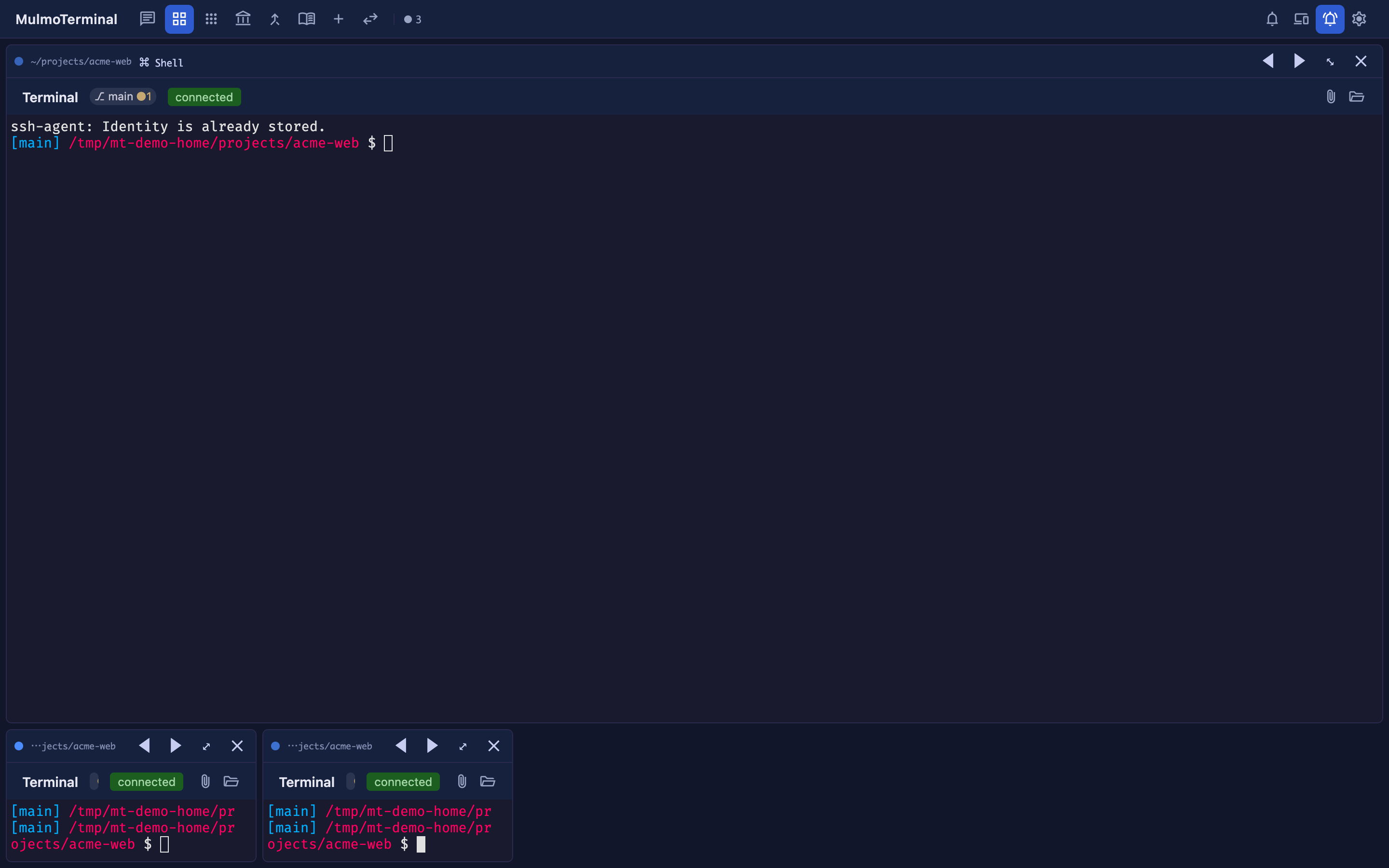
The Show list roster / Show thumbnail strip button in the top-right corner switches between the roster and the filmstrip (a thumbnail strip; click a thumbnail’s header margin to switch cells). Restore returns to the grid.
Switching the enlarged terminal from the keyboard
You can bind keys that move the enlargement to the next / previous terminal — the keyboard equivalent of clicking a roster row, so you can walk the whole board without reaching for the mouse. The order followed is the one on screen, so it respects the roster’s current sort (including attention-first ordering).
Nothing is bound out of the box. Any key this claims is a key the program inside the terminal stops receiving, so that trade is yours to make: add a
keymapto~/.mulmoterminal/config.jsonand the shortcuts turn on. With nokeymap, they stay off entirely.
{
  "keymap": {
    "zoom-next": "PageDown",
    "zoom-prev": "PageUp"
  }
}
→ Binding syntax, the full action list, and which combinations can never be bound: Configuration → Keyboard shortcuts.
Two behaviours worth knowing:
- They only work while zoomed. In the normal grid nothing happens:
zoom-next/zoom-prevmove the enlargement, and there is none to move. To walk the cells in the tiled grid, bindfocus-next/focus-previnstead — those move the cursor (the focused cell lifts, and the page follows at the edge), and they are the mirror: they do nothing while a terminal IS enlarged. Give the two pairs different keys: one keystroke resolves to one action, so binding both to it loses one — and starting the server says which. - They stop at both ends rather than wrapping. With only two terminals this means roughly half of your presses do nothing: previous-on-the-first and next-on-the-last are deliberately no-ops.
Collapsing with Restore returns you to the page holding the terminal you were just looking at, not the page you originally zoomed in from.
A bound key is taken away from the program inside the terminal. Bind
PageDownand, while zoomed, it no longer reachesless,vim, or Claude Code’s own paging. Modifiers are matched exactly, so binding the bare key leavesShift+Page Up/Shift+Page Downalone — they still scroll the terminal’s scrollback, which is the usual way out. An active IME conversion always passes through, so a candidate list paging with Page Down keeps working.
On a Mac laptop keyboard there are no dedicated Page Up / Page Down keys; use Fn+↑ and Fn+↓.
Mixing agents in one grid
In the same grid, you can launch Claude, Codex, Antigravity (agy), Grok, Muse, Copilot or Cursor per cell — or Shell, when you only want a terminal. The agents share the same terminal experience, persistence, GUI panel, and visibility machinery. Use each for its strengths, or throw the same task at several and compare. What each one needs installed, how it resumes, and which of them can tell you it has finished: → Which coding agent. The two paragraphs below are the two whose GUI-panel registration is per directory.
Antigravity needs agy on your PATH. ANTIGRAVITY_BIN / ANTIGRAVITY_MODEL / ANTIGRAVITY_HOME override the binary, the model, and where it keeps conversations. One difference worth knowing: its GUI-panel registration is written per directory (.agents/mcp_config.json, kept out of your git status), not per session, because that is the only project-scoped file agy reads.
Grok needs grok on your PATH. GROK_BIN / GROK_MODEL / GROK_HOME override the binary, the model, and where it keeps sessions. It registers the GUI panel per directory too, in .grok/config.toml — but through grok’s own grok mcp add -s project, so anything else you have in that file is left exactly as you wrote it. Grok resumes like Claude rather than like the other two: MulmoTerminal chooses the session id up front, so a reloaded cell continues the same conversation with nothing to look up.