MulmoTerminal Guide (English)
13.6.0 is out. Each terminal has a send button that pastes its last exchange into another agent’s terminal in the same repository and takes you there — you press Enter. Setup guide
What is MulmoTerminal?
MulmoTerminal is a control room for AI coding agents. You run several agents at once — Claude Code by default, and also Codex, Antigravity, Grok, Muse, GitHub Copilot CLI and Cursor CLI — and it puts every one of them on a single browser screen, so you can see at a glance which one needs you.
Why it exists
When you run one coding agent, the slowest thing in the room is the agent. You give it a task, wait, and read the answer.
Then you start a second one, and a third, because each task takes minutes and your hands would otherwise sit idle. Now the slowest thing in the room is you, and the trouble has little to do with the agents themselves:
- One of them is always stopped — on a permission prompt, or a question — and it does nothing at all until you notice.
- Six terminal windows look the same. You lose track of which folder each one is in, and of what you asked it. Some people have typed a reply into the wrong agent.
- Close a tab, or lose the connection, and the session is gone.
- You keep typing commands just to check git, open a folder or start a pull request.
The limit is no longer the computer. It is your attention. MulmoTerminal exists to protect it: not to make you watch your agents, but to let you triage them — go to whichever one is waiting, and leave the rest alone.
What it is
A web app that runs on your own machine: start it with npx mulmoterminal@latest and open http://localhost:34567. Each agent runs as a real terminal in its own cell of a grid. It is not an editor or an IDE, so it works whichever editor you use, and your code and API keys stay on your machine.
What it does for you
- A grid, coloured by state. Blue means working, amber means it is waiting on you, a green ring means it has finished. A sound tells you when one needs you, so you go where the light is (Basics).
- A roster that remembers for you. Zoom into one agent and a list still shows every session: what you last asked it, what it answered, and where its pull request stands (Basics).
- Your phone calls you back. A push notification arrives when a turn finishes or waits for you, and you can answer with one tap (Mobile notifications).
- Sessions do not die. They survive a reload, a lost connection and a server restart, and the sessions you already had come along (FAQ).
- Git without the typing. Agents work in separate git worktrees so they do not collide on one repository, and you commit, push and open a pull request from the cell (Worktrees).
- A screen beside the terminal. What an agent makes — diagrams, forms, images, documents, slides — appears next to the terminal instead of as pasted text (Feature reference).
- Several subscriptions side by side. Spread work over more than one Claude subscription, see how much of each week’s allowance is left, and move a session from one to another (Token rotation).
- Yours to shape. Buttons, launchers and per-project settings come from a small configuration language (Configuration).
Who it is for
Anyone who runs more than one agent and loses track of which one is waiting. People have said it was worth the switch at one to three sessions, not only at ten. You do not need to write code for a living to start: the getting-started page goes from zero to a running grid.
New here? Opening a terminal, installing Node.js / Claude Code / git / gh on macOS and Windows, the start command, and what to do when it doesn’t work — installing and launching is one page, written so someone who doesn’t write code for a living still ends up with a running grid. Already set up? npx mulmoterminal@latest is the whole thing.
Getting started — from zero to running Basics — how to read the screen
Rather see it running first? Ninety seconds, with sound — one agent, then a grid of them.
Each cell is coloured working, done or needs you. Zoom into one and the roster still holds what every other session asked, answered and did, so you go to whichever is lit and lose nothing catching up.
Transcript of the narration
When you ran one coding agent, the slowest thing in the room was the agent.
Now that you run five, the slowest thing in the room is probably you.
One of them is always stopped. A permission prompt. A question. Until you notice, it does nothing at all.
MulmoTerminal puts every session on one screen. Blue is working. Green is done. Amber is waiting on you.
You stop hunting. You go where the light is.
The other kind of slow is: what did I even ask this one? The roster keeps one line per session — what you asked, and what came back. Nothing left to remember.
When one is done, you don’t go looking for its window. Click its row — the next order goes in right there.
Then you pick the next one from whatever is lit. Click, answer, move on. You never go looking — the roster tells you.
We built MulmoTerminal for exactly that: not to watch agents, but to triage them.
That is the whole install.
Follow us on X — new releases and features are announced on X: in English on @mulmocast, in Japanese on Singularity Society (@SingularitySoci). That is where everything ships first, so follow @mulmocast to hear about it as it lands.
❓ Frequently asked questions — how it compares to VS Code, Cursor, tmux panes, Claude Squad and Conductor; whether your existing Claude Code sessions carry over; Windows; token cost. The things people ask before trying it
Something looks wrong? Type
/mulmoterminal-bug-reportin any session. The bundled skill hears the symptom out, checks your real config and version to see whether it is configuration or by design, searches the existing issues — and only helps you file one if none of that explains it, with the environment collected and secrets masked.Want to change something? Open an issue, not a pull request — outside PRs are closed automatically, whatever their size. That is not a brush-off: the bug we cannot reach from our machines and the idea we have not had are exactly what we are short of. See CONTRIBUTING.md.
Run a whole team of AI coding agents (Claude Code / Codex) in parallel, on one board — MulmoTerminal is the cockpit for that — a browser terminal, so it doesn’t care which editor you use.
Vibe coding with one agent needs nothing but a shell. What this app is for is the moment you run parallel agents and lose track of which one is waiting on you. The vocabulary is in the glossary. The headline features first.
Highlights
The grid — a cockpit for parallel agents
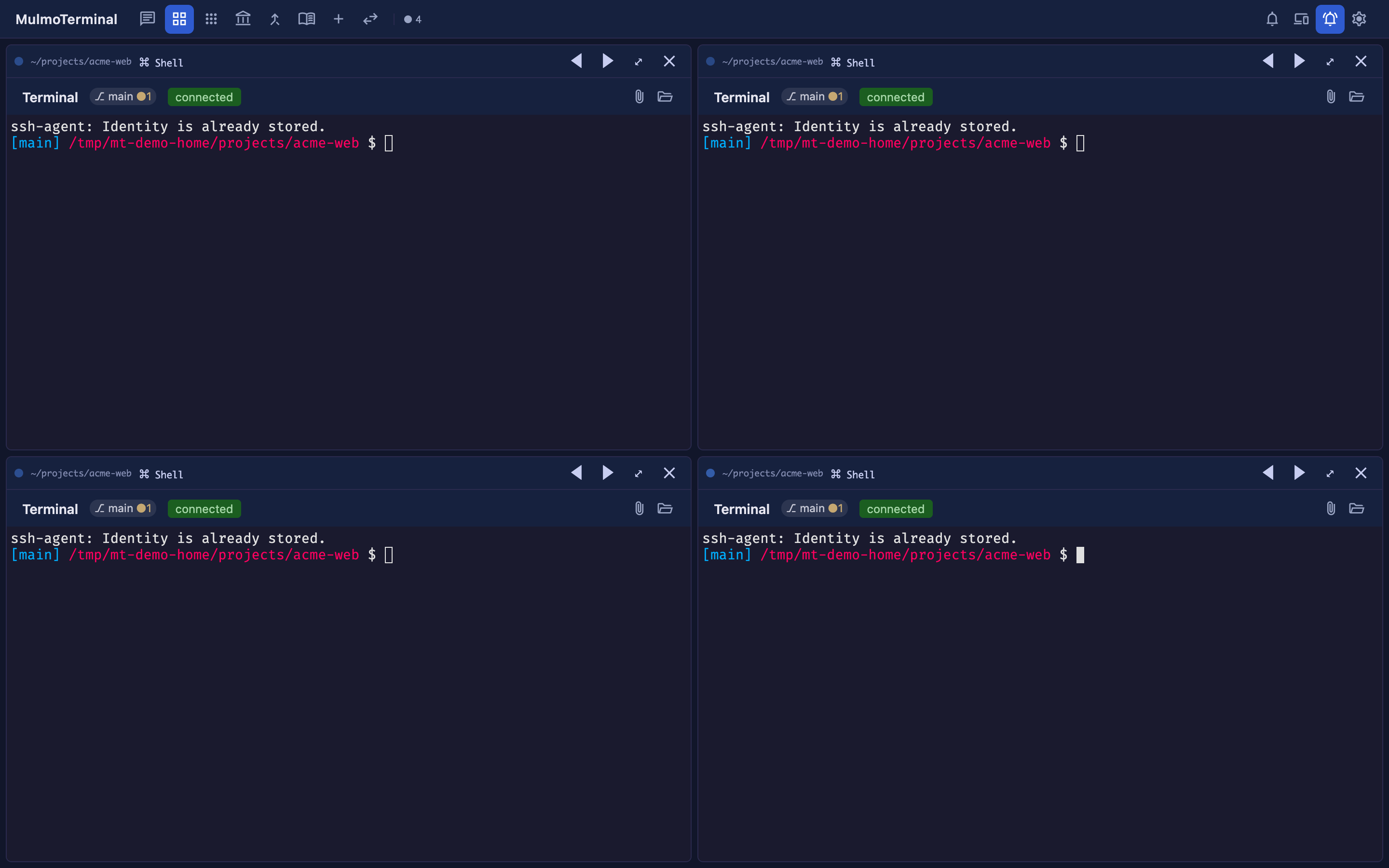
One independent agent per cell. Status colors (working = blue / awaiting input = amber / done-review = green ring) and an attention sound mean you pick up only the cells that call you — no babysitting. → Basics
The cockpit roster — everyone’s progress, one row each
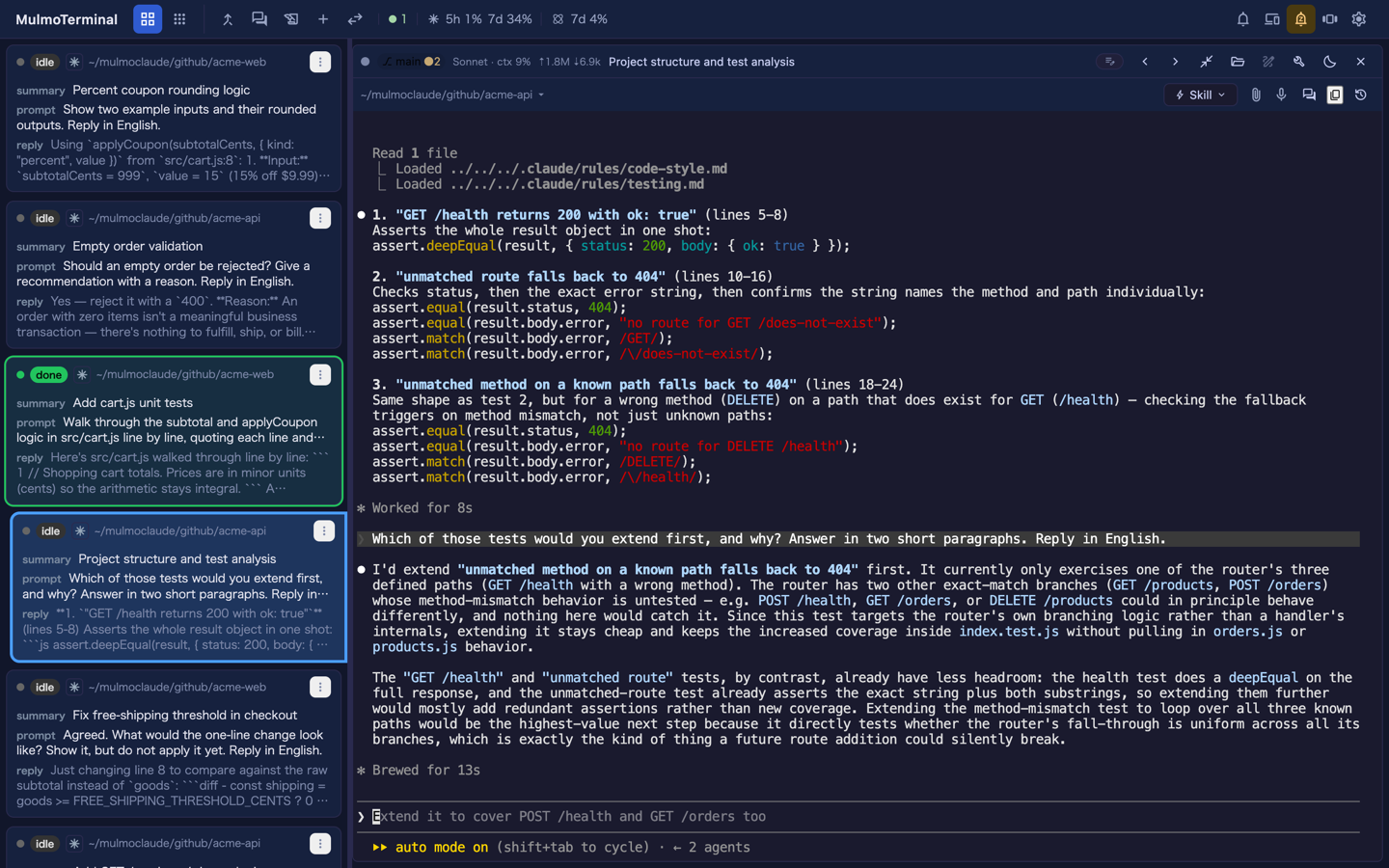
Stay zoomed into one agent while a text list tracks every session’s AI summary, last instruction, latest reply, and PR phase (draft / CI fail / ready / merged …). This is the main screen for running many agents. → Basics
Phone push & remote control — walk away, get called back
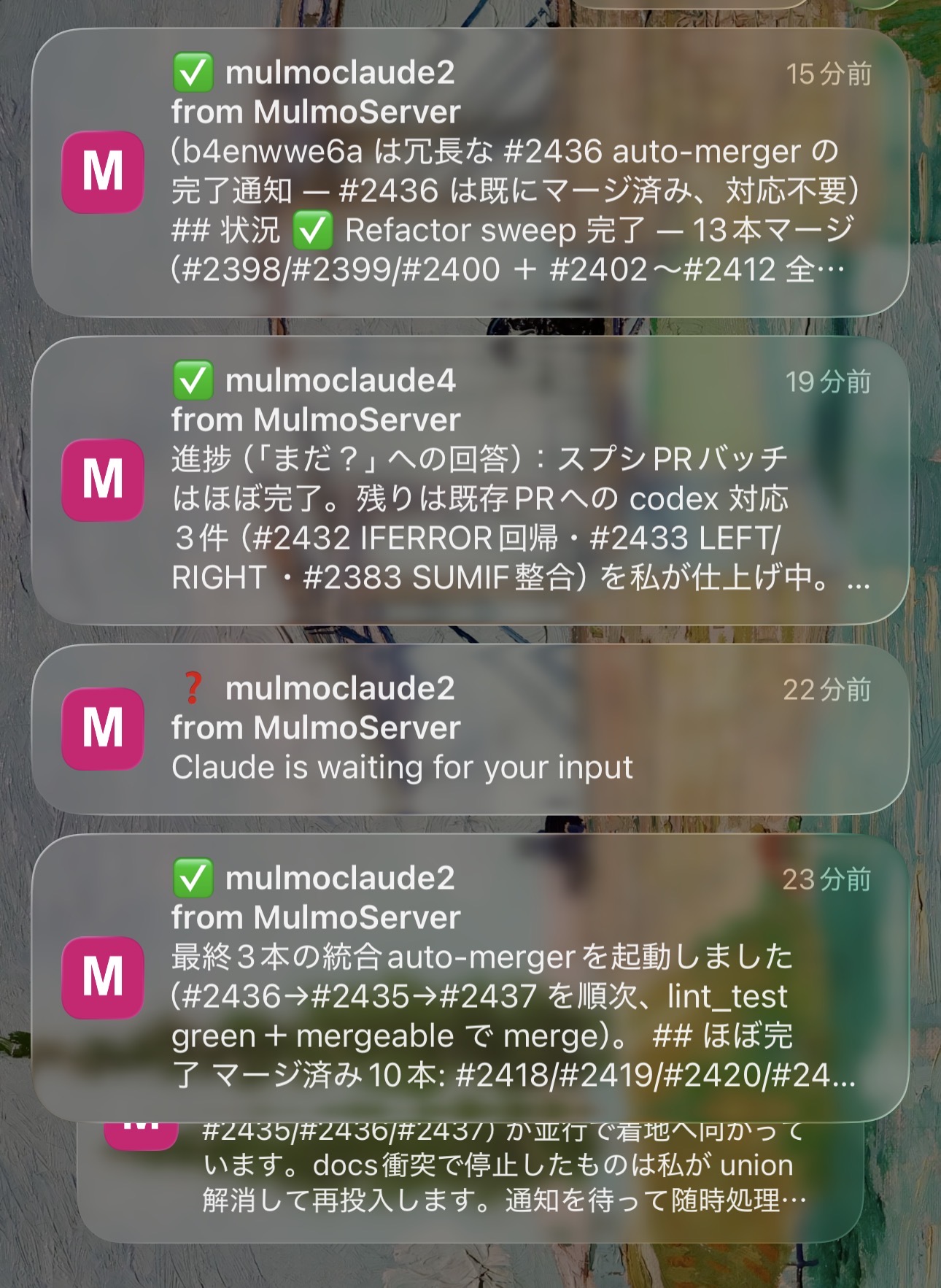
Finished and input-waiting turns send a Web Push to your phone; open the live screen there and answer with one tap (yes / no / continue). → Mobile notifications
Worktree isolation & one-click PRs
Git worktrees let several agents work the same repo without colliding — diff panel, commit, push, and Open PR, all from the cell. → Isolating work in a git worktree
The GUI panel — a screen beside the terminal
The agent’s tool calls render as diagrams, forms, images, documents, and video/slides (MulmoCast). Your agent hands you an interface, not just printed text. → Feature reference
tmux persistence — sessions don’t die
Sessions survive reloads, reconnects, and server restarts. Leave a long build running and come back.
What people say after switching
These are experiences reported by users who moved over from an IDE or a split terminal — not benchmarks, and not claims we measured. Your setup may differ.
“It stopped eating my memory”
Keeping several agents apart by opening several IDE windows is expensive: each one brings its own editor, language server, extensions and file watchers. One user reported a 64 GB machine stuttering under that load, and running smoothly after moving over — here the agents are PTYs on a server and the UI is browser tabs.
“I stopped answering the wrong agent”
Six panes of scrolling text look identical. Users have described typing a reply into another agent’s terminal, and losing track of what they had asked in the first place. As one put it, the windows all look the same, so switching between them costs time just to work out what you are looking at.
The problem isn’t attention — it’s that N identical panes means holding N contexts in your head. Colour-coded state, a name badge and a per-directory colour move that onto the screen instead.
“Watching many and reading one stopped being a trade-off”
Splitting a terminal six ways leaves every pane too small to read a long answer without constant scrolling and resizing — one user described exactly that with a 4,000-character reply. So you quietly accept worse reading every time you add an agent.
Grid ↔ enlarge removes that. Watch all of them, then blow one up and read it properly — the cockpit roster keeps the rest in view as text while you do.
“My existing sessions came with me”
Sessions resume as-is — same claude --resume, same transcripts. Point it at a directory you already work in and your history is there. Nothing to migrate, nothing to redo. One user said this alone made the switch worth it, having previously lost context to killed sessions.
You don’t need ten agents for this to pay off. Users have reported the switch being worth it at one to three parallel sessions. The wins above are about not losing track, not about running more.
Vibe-coding with AI agents — sound familiar?
As you run more and more terminals and AI agents (Claude Code / Codex)…
- 📊 you lose track of which one is doing what (their status)
- 📁 you can’t tell which directory each is in
- 💭 even when you know the dir, what did I even ask it? (you forget the instruction)
- an agent finishes and you don’t notice — it waits on you, or you wait on it
- 💥 close the tab or the terminal drops, and the session is gone
- 🌿 you want to check git or open a folder, but keep typing commands for it
- all you really wanted was to work fast with the terminal as your hub —
AI agents take minutes per task. Babysit one and your hands sit idle; add more and keeping track gets harder. The bottleneck isn’t the CPU or the terminal — it’s your attention.
Every one of these, handled
| The moment | In MulmoTerminal |
|---|---|
| Can’t tell the status of many terminals | Lay them out in a grid; status colors (working = blue / awaiting input = amber / done-review = green ring) + a sound, at a glance (→ Basics) |
| Don’t know which directory | Each cell shows its dir, a project name badge, and colors. Color-code to tell them apart (→ Config) |
| Forget the instruction | The cell header always shows the latest instruction / what it’s doing; Activity timeline shows the tool-call history (→ Feature reference) |
| Want to know it’s done | Input-waiting turns amber, a finished turn gets a green ring, both play a sound — plus a Web Push to your phone (→ Mobile notifications) |
| Want the session to survive | tmux persistence keeps it alive across reload, reconnect, and server restart |
| Open git / a dir quickly | A git status chip; open the OS file manager (Finder/Explorer) / the in-app files / a PR in one click |
| Work with the terminal as the hub | All of the above on top of a terminal, and extend it to your workflow with a DSL (→ Config) |
The four pillars behind it
- Supervise — the grid is a cockpit for parallel agents. Triage by status color + sound; step in only where you’re needed.
- See — each agent’s status, model, context, git, tool-call timeline, and cost, at a glance. What each one is doing and where, always visible.
- Automate & investigate — run scripts in one click (in a spare cell next to a running session); when one fails, turn a wall of logs into a short AI diagnosis.
- Extend (DSL) — header buttons/chips, launchers, and per-project config via a small DSL — it fits any developer.
Get started
If the claude CLI (Claude Code) runs on your machine and you have Node ≥ 24.15, one command starts it:
npx mulmoterminal@latest # opens http://localhost:34567
If that didn’t work, or you don’t know what to install in the first place, everything is on Getting started — from zero to running: opening a terminal, installing Node.js / Claude Code / git / gh on macOS and Windows, the full list of CLIs it drives, and what to do when it doesn’t work — one page.
How to read this guide
- Getting started — from zero to running (install and launch, start to finish)
- Basics — what you can do in the grid
- FAQ (existing sessions, Windows, token cost, how it compares)
- Scenarios — workflows by example
- Feature reference (grouped by the four pillars)
- Feature list (every capability today, one line each with the release it arrived in)
- Which coding agent (Claude Code, Codex, Antigravity, Grok, Muse, Copilot and Cursor: what each needs and how each resumes)
- Isolating work in a git worktree (several agents on one repository without colliding)
- Making the cells talk to each other (one-turn handoffs, round tables, the room)
- Configuration (settings modal ·
config.json·.mulmoterminal.json· the DSL)- Customizing the header (your own buttons and chips, from the beginning) and the header reference (variables,
when, merging)
- Customizing the header (your own buttons and chips, from the beginning) and the header reference (variables,
- Mobile notifications (Web Push) (iPhone / Android setup)
- From your phone (watch, reply with your own chips, start a terminal)
- Run the server on another machine (a Linux box, a VPS or Docker, reached over an SSH tunnel)
- Shared apps (a form, a sign-up sheet or a booking page other people use — and taking part in someone else’s)
- From a collection to an app (turn a collection or a shared app into an app you own, with Blueprints)
- Blueprints (experimental) (a guide for testers)
- MulmoCast videos (Remotion scenes)
- GitHub — cross-repo PRs & Issues (open PRs and issues from your registered repos, on one screen)
- Using another model via OpenRouter (run Kimi / DeepSeek / Gemini, with measured data)
- Several subscriptions side by side (beta: some cells on a second Claude Code / Codex login, with its usage in the toolbar)
- Token rotation (beta: register several Claude subscriptions and let each new session start on the one with the most room, or move a running session yourself)
- Local models with claude-ollama (fully local, offline, via Ollama)
- Open-source alternatives (an honest map of the other tools for running agents in parallel)
- Glossary
The Japanese guide is here: 日本語ガイド.
Table of contents
- Getting started — from zero to running
- Run multiple Claude Code sessions in parallel
- FAQ — how it compares to VS Code, Cursor, tmux, Claude Squad, Conductor
- Git worktrees for parallel AI agents, and other workflows
- Isolating work in a git worktree — from creating one to cleaning up
- Feature reference — parallel terminals, worktrees, cost, phone
- Feature list — everything MulmoTerminal does today
- The agent drives your right pane — showing files and asking for checks
- Spreadsheets, charts and data analysis in conversation
- Which coding agent
- Making the cells talk to each other — one-turn handoffs and round tables
- Configuration — colours, sounds, launchers, per-project settings
- Customizing the header — a beginner's guide to buttons and chips
- Header reference — variables, when, merging, chips
- Phone notifications when a coding agent needs you
- From your phone
- Shared apps — a form, a sign-up sheet or a booking page other people use
- From a GitHub issue to a running agent in one click
- Run Claude Code against another model (OpenRouter, local)
- Several Claude Code / Codex subscriptions side by side (beta)
- Spread your work across several Claude subscriptions automatically (beta)
- Open-source alternatives for running parallel AI coding agents
- Local models with claude-ollama
- Glossary — parallel agents, worktrees, vibe coding
- Blueprints (experimental) — a guide for testers
- Run the server on another machine (SSH, Docker)
- From a collection to an app — building your own app with Blueprints
- MulmoCast videos — Remotion scenes
- Your own pictures behind a busy terminal
- 13.6.0 — Send a turn to the terminal beside you
- 13.5.0 — Usage counts money when it was spent, by model
- 13.4.0 — Ask Claude to tidy a project's memory
- 13.2.0 — Changed files and memory in the Library
- 13.1.0 — The Library, and Restart keeps your conversation
- 13.0.0 — Node 24.15, and quieter voice input
- 12.2.0 — Solid models for parts that are made
- 12.1.2 — Token rotation stops choosing a subscription that cannot run Claude Code
- 12.1.1 — A Codex cell keeps reporting when it is working
- 12.1.0 — A shorter roster, a roster you can fold, and a crashed cell that stays
- 12.0.1 — A path right after a full-width colon is a link
- 12.0.0 — A clicked path opens the pane beside its cell, outside files included
- 11.7.0 — Right-click a path to choose how it opens, and a tab shows the source too
- 11.6.0 — Panes stack, and a conversation keeps the name you gave it
- 11.5.0 — The usage gauge works wherever you start
- 11.4.0 — A board for your issues and PRs
- 11.3.0 — Decide a plan on a page
- 11.2.0 — Formulas that answer a table
- 11.1.0 — Folders at a glance, more charts, and a quieter usage gauge
- 11.0.0 — Ask your data a question
- 10.10.0 — Several machines on one phone, and charts that follow a spreadsheet
- 10.9.0 — Spreadsheets on the Canvas, and a folder as a gallery
- 10.8.0 — Your own pictures behind a busy terminal
- 10.7.2 — End a worker and close its cell, and lighter worktrees on macOS
- 10.7.1 — Keep part of a subscription's week for yourself
- 10.7.0 — Copy a whole file, see which file is open, and reopen recent files
- 10.6.0 — Codex and Copilot workers can be limited to some GUI tools
- 10.5.0 — A cell closes when its agent ends, and Antigravity tells you when it is done
- 10.4.0 — Panes beside the tiled grid, and files outside the cell open in a tab
- 10.3.0 — The agent shows you files and asks you to check its work
- 10.2.0 — Maths in the full-screen preview, ShapeScript and the editor beside the Canvas view
- 10.1.0 — Switch a file to the Canvas view inside the Files pane
- 10.0.0 — Read a directory's past sessions from the phone
- 9.9.0 — Mermaid diagrams in the Files preview
- 9.8.0 — A help desk, and Ctrl+B reaches your agent
- 9.7.0 — See when a token at its limit resets, and JingleScript reads scores from files
- 9.6.0 — Move a session to another subscription from its header, and JingleScript
- 9.5.0 — A UFO joins the heat pictures, and two quiet fixes
- 9.4.0 — Confetti, from a key, a merge or Settings
- 9.3.0 — Cells opened together are spread across your subscriptions
- 9.2.0 — Several Claude subscriptions, used evenly, picked for you
- 9.1.0 — Your agent writes Remotion scenes itself, and a terminal's files are one tap away on the phone
- 9.0.0 — Remotion scenes in MulmoCast videos, choosing files for your phone, and movies that no longer "fail" after a minute
- 8.8.0 — Apps others can copy, share cards, page themes, and a full-width Conversation that fits
- 8.7.0 — Surveys that show their results, printable STL, and a set-aside cell that stays put
- 8.6.0 — See what each session runs, and shared apps that show only what you choose
- 8.5.0 — Answer a blueprint's questions at the approval screen, and blueprints in English
- 8.4.0 — Find a skill on skills.sh, and Claude cells keep their scrollbar
- 8.3.0 — A Skills viewer, and apps from a collection keep MulmoTerminal's look
- 8.2.0 — Blueprint steps repair themselves, and closed cells can be reopened
- 8.1.0 — See what a document task changed, and more examples to try
- 8.0.0 — Every directory setting in a form, one click from its terminal
- 7.3.0 — Header buttons of every kind, folders included, and PDF / video in the Files pane
- 7.2.0 — Change settings in Settings instead of asking the agent
- 7.1.0 — The Files pane keeps history, outlines Markdown and points the agent at lines
- 7.0.0 — What changed in the Files pane, and a command palette that learns what you use
- 6.8.0 — Tabs and HTML previews in the Files pane, and a command palette that reaches everything
- 6.7.0 — Talk from the Tools menu, move terminals from the keyboard
- 6.6.0 — A tidier cell header, and document blueprints
- 6.5.0 — Blueprints (experimental), and marking a session unread
- 6.4.0 — a command palette, two-key shortcuts, and a preview in your theme
- 6.3.0 — the Markdown preview shows what you wrote
- 6.2.0 — Codex cells say when they are waiting for your approval
- 6.1.0 — A picture behind a project's terminals
- 6.0.0 — Choose the agent and account an issue starts in
- 5.8.0 — A second subscription per cell (beta), and agents you cannot start say so
- 5.7.0 — A way back from history view, and phone rows that say what they are
- 5.6.0 — A refused deletion stops reading as a failed push
- 5.5.0 — A way out of a language you cannot read, and a push that says what it deleted
- 5.4.0 — The interface speaks your language, and a long-running server tidies up after itself
- 5.3.0 — Search inside your files, and the pane remembers where you were
- 5.2.0 — Drag the roster, and every agent gets a summary
- 5.1.0 — Walk the grid from the keyboard
- 5.0.1 — An ended session says which agent it was
- 5.0.0 — Read the conversation, not the screen
- 4.27.0 — Open a file by name in the Files pane
- 4.26.0 — The launcher no longer waits forever on "already running"
- 4.25.0 — Start without Claude Code, and read a codex, cursor or copilot conversation on the phone
- 4.24.0 — One tool for the gallery, and two more ways out of a ShapeScript result
- 4.23.0 — A cursor cell catches up with the rest of the grid
- 4.22.0 — Two more agents, and which of them will tell you it has finished
- 4.21.0 — Your OS opens the files this app cannot, and a spreadsheet no longer breaks when you click it
- 4.20.0 — Your ShapeScript models need converting, and a deck in your repo finally saves
- 4.19.0 — Read a collection and drive its chat without leaving it
- 4.18.0 — Let the agent look at what it built
- 4.17.0 — Your favourites on the toolbar
- 4.16.1 — Node 22.12, and four fixes
- 4.16.0 — Decks in an ordinary repository
- 4.15.0 — Show a deck from your repository
- 4.14.0 — Restart an agent without leaving the cell
- 4.13.0 — Files beside the terminal, and a path you can insert
- 4.12.0 — The launch panel, and getting your grid back
- 4.11.0 — Stopping it, and the ports it takes
- 4.10.1 — A scrollbar attached to nothing, and prompts you can copy
- 4.10.0 — The machine's own load
- 4.9.0 — The prompts pane
- 4.8.5 — Windows shells, tmux 3.7, and Google sign-in
- 4.8.4 — The notification body, and Japanese in the terminal
- 4.8.3 — Answering a question, at the desk and on the phone
- 4.8.2 — GitHub beside the cell, and a header you can read while it runs
- 4.8.1 — A server that stops running out of terminals
- 4.8.0 — Collections in the cell, and tasks that catch up
- 4.7.6 — Groundwork for collections outside the workspace
- 4.7.5 — Settings you can find, in a language you read
- 4.7.4 — Your projects, recognisable on your phone
- 4.7.3 — Buttons that say they are working
- 4.7.2 — The terminal comes back on the right process
- 4.7.1 — The version you are running, on screen
- 4.7.0 — Muse, and the GUI tools it was not supposed to be able to reach
- 4.6.1 — Rooms, and a grid that keeps up with a flood
- 4.6.0 — The cells talk to each other
- 4.5.1 — A backend with no models says so
- 4.5.0 — repo.json, a port per worktree, Grok, and settings you can reach
- 4.4.0 — Every cell keeps its own pane, and the Canvas opens a file on its own
- 4.3.1 — The workspace chip says WORKSPACE
- 4.3.0 — The workspace is one place, and an Enter that means 変換
- 4.2.0 — Self-hosted GitLab, panes that take the whole terminal, and worktrees that keep their colours
- 4.1.1 — Usage that stops saying n/a, and 300 lines of scrollback on the phone
- 4.1.0 — GitLab in the PRs & Issues view
- 4.0.0 — the grid is the app
- 3.0.0 — start from the issue
- What changed in 2.9.1
- What changed in 2.9.0
- What changed in 2.8.0
- What changed in 2.7.0
- What changed in 2.6.0
- What changed in 2.5.3
- What changed in 2.5.2
- What changed in 2.5.1
- What changed in 2.5.0
- What's new in 2.4.0
- What's new in 2.3.0
- What's new in 2.2.0
- What's new in 2.1.1
- What's new in 2.1.0
- What's new in 2.0.0
- What 1.12.0 fixed
- What 1.11.1 fixed
- What's new in 1.11.0
- What's new in 1.10.0
- What 1.9.2 fixed
- What's new in 1.9.1
- What's new in 1.9.0
- What's new in 1.8.0
- What 1.7.2 fixed
- What 1.7.1 fixed