6.4.0 — a command palette, two-key shortcuts, and a preview in your theme
A snapshot as of 6.4.0 (released 2026-09-26). It will go stale as the app moves on — that is expected, and the living reference is the guide each section links to.
A command palette
The toolbar has a new Commands button (the ⌘ icon, next to Settings). It lists every grid action with a one-line description and the key you bound to it, if any. Type part of a name or the action id (find, zoom) and press Enter; Esc closes it.
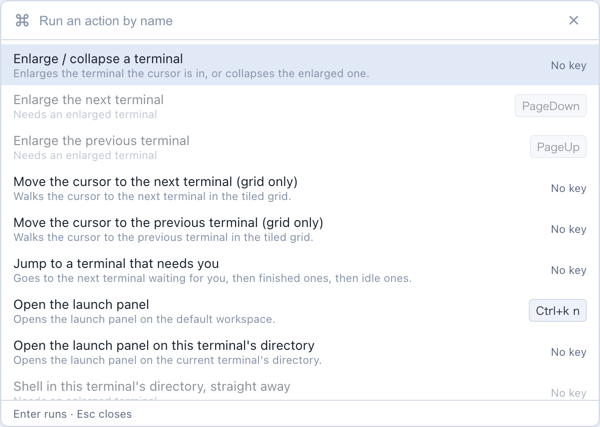
- An action that cannot run in the current view is greyed out with the reason — “Needs an enlarged terminal”, for example. Over another view or the launch panel, every row says “Only while the terminal grid is in front”.
copyandpasteare not listed: they act on a terminal’s selection, from inside it.
A key for it is not set by default. Nothing in keymap is bound unless you bind it. To open the palette with VS Code’s key, add this to keymap in ~/.mulmoterminal/config.json — on a Mac the p must be lowercase, because with Cmd held the browser reports the lowercase letter:
"command-palette": "Cmd+Shift+p"
Then restart the server and reload the tab — config.json is read once at startup.
How to tell it worked. The ⌘ button is in the toolbar, and your key opens the list.
The keymap reference: Keyboard shortcuts.
Two-key shortcuts
A keymap binding can be two keys separated by a space, like tmux’s prefix or Emacs’s C-x b. One first key can lead to several actions:
{
  "keymap": {
    "files-find": "Cmd+k p",
    "files-search": "Cmd+k f",
    "zoom-toggle": "Cmd+k z"
  }
}
After the first key, a small box in the bottom-right lists what can follow it:
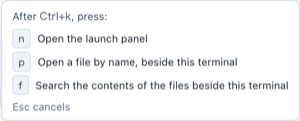
Esc, any key not in the list, or three seconds ends the wait. None of these keys reaches the terminal.copy,pasteandsendtake a single key only.- Give a sequence a first key nothing else uses; the startup check warns and names every binding on that key if you don’t.
- A binding with a space in it used to be accepted as one key and never fired. It is now reported as an error at startup, naming the entry.
More: Two-key sequences.
The Markdown preview follows your theme
The Files pane’s Preview used to follow the OS light/dark setting, so a dark app theme on a light OS showed a white box. It now uses the app’s theme — built-in or your own:
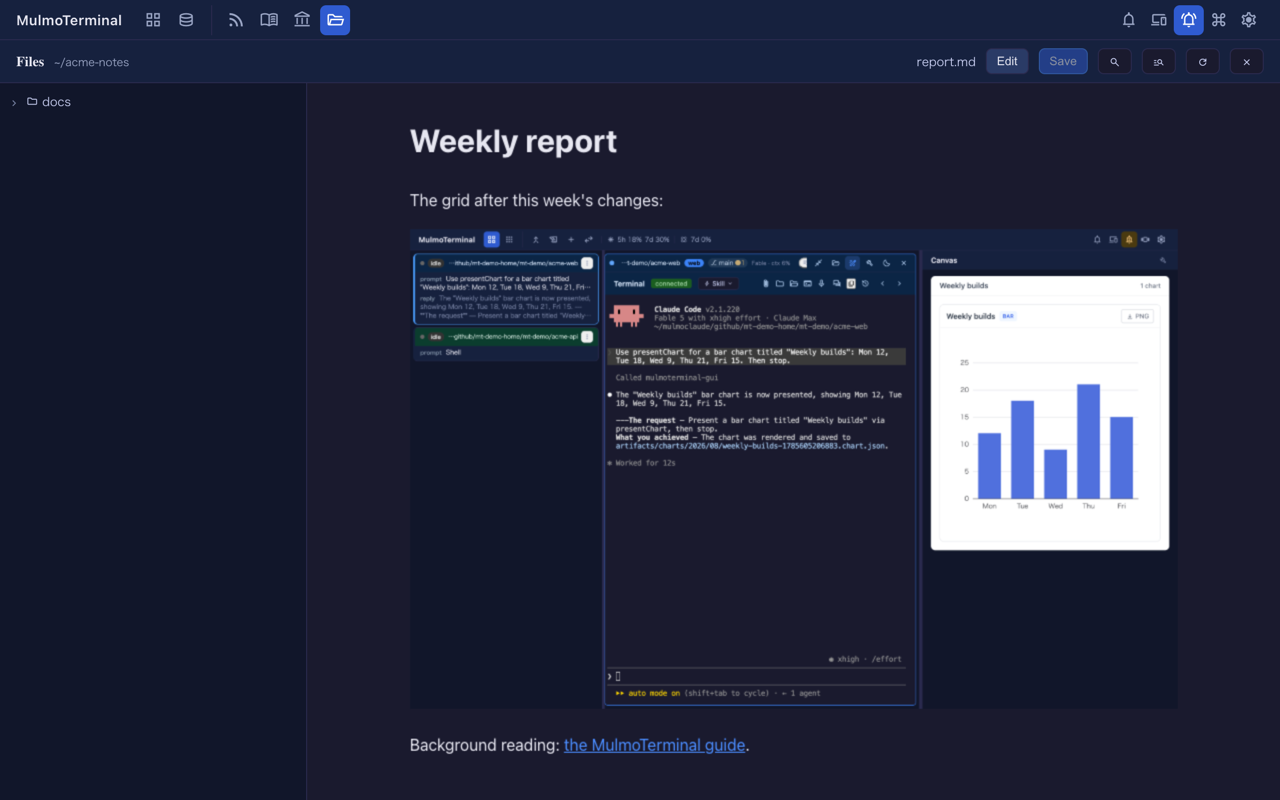
- It follows a theme change at once, and keeps your place in the document.
- The new tab a clicked
.mdopens still follows the OS setting — it has no app to ask.
How to tell you have it. With a dark theme and a light OS, press Preview on a .md: the document is dark.
Fixed
- The two-key hint rendered in a serif font; it now uses the app’s font.