11.6.0 — Panes stack, and a conversation keeps the name you gave it
A snapshot as of 11.6.0 (released 2026-11-02). It will go stale as the app moves on — that is expected, and the living reference is the guide each section links to.
New features
The panes beside a terminal stack
Beside a terminal there is room for one pane: Files, the conversation, Tools, History, the Canvas. Until now opening one over another replaced it, so opening the conversation over Files and then closing the conversation left nothing — Files had gone with it. The panes you open now stack: closing the one on screen shows the one it covered (#3217).
Try it: open Files from a cell’s header and expand a folder, then open the conversation. Close the conversation. Files is back beside the terminal, the folder still expanded. Opening a pane that is already in the stack moves it to the top, so each pane is in the stack once, and the stack is kept when you reload the page. The question pane is not part of it: when Claude asks you something, its pane covers whatever is on top until you answer, and then that pane is back. Nothing to set up. More: Features under “Stacked right panes”.
A conversation keeps the name you gave it
In a Claude cell, type /rename followed by a name, as you would in Claude Code anywhere. That name is now the conversation’s name in MulmoTerminal: on the cell’s header, in the roster row of the enlarged view, in the launcher’s or resume here list, and in the command palette, both its resume entries and its recently-closed ones (#3226, #3231). Before, those places showed the title Claude had made up, or the last prompt, and claude -r outside MulmoTerminal was the only place the name showed.
Your own session note (the pencil beside the header text) still comes first, and the name it displaces moves to the tooltip. Renaming again replaces the name, /rename with nothing after it removes it, and after /clear the new conversation starts without one. One thing to know: the header reads the name when the cell is opened, reconnected or a turn ends, so a name typed while the cell is open appears at the next of those, not the moment you type it. More: Features under “Conversation name”.
Filter a long resume list
The launcher’s or resume here list, under the Working directory field, can run to dozens of conversations in a folder you have worked in for a while. Once it holds six or more, a Filter by title box sits above it (#3232). Type any words: a conversation stays listed when every word is in its title, in any order and whatever the case. When nothing matches, the list says so in one line. The box empties when you change the directory or the agent, since the list underneath is another one, and it stays when the same list reloads after you stop a session. With /rename names (above), the list is now yours to search.

Switch off the “Viewing history” banner
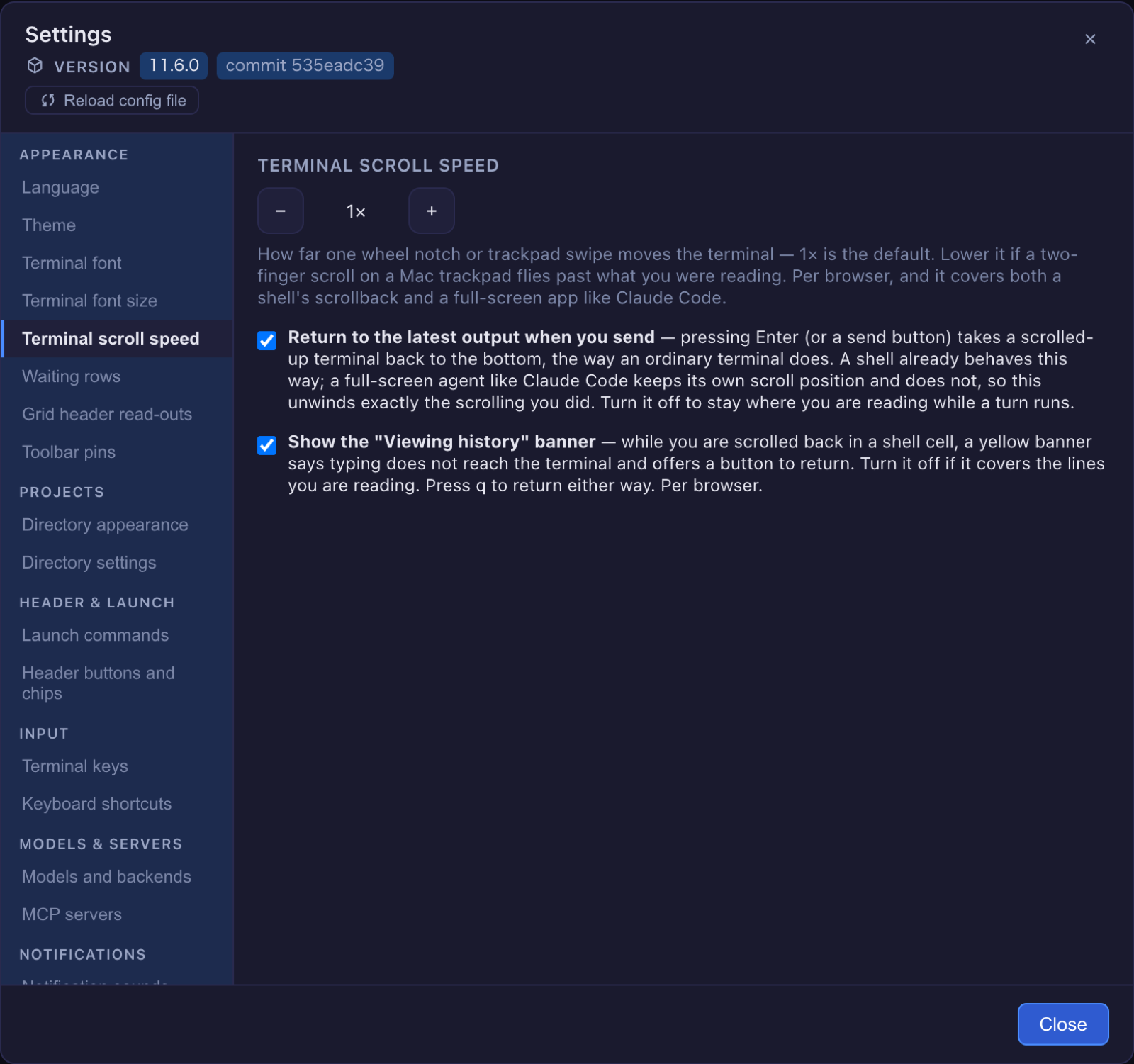
When you scroll back in a shell or Codex cell, the cell is in tmux’s copy-mode, where keys move through the history instead of reaching the program, and a yellow Viewing history banner says so with a Back to input button. If the banner covers the lines you are reading, open Settings, find Terminal scroll speed, and untick Show the “Viewing history” banner (#3223). The banner is gone from then on in this browser; q still returns to input. The setting is per browser, like the scroll speed beside it, and leaving it ticked changes nothing. More: Features under “Leave history view”.
What looks different
- Reload in Files re-reads every folder you have opened (#3228). The reload button at the top of the Files pane used to re-read only the top folder, so a file an agent (or you, in a terminal) added inside a folder you had expanded never showed up, and collapsing and re-opening the folder did not help either. It now re-reads every folder the pane has read so far, open or collapsed. How to tell: expand a folder, create a file in it from a terminal, press Reload tree — the file is there.
- The PDF export draws mermaid diagrams (#3216). A markdown document with a
mermaidfence drew the diagram on the Canvas but printed it as a code block when exported to PDF. The PDF now shows the diagram, as the Canvas does; a fence mermaid cannot parse keeps its code block under the error line, as on the Canvas. Maths is not covered by this change.
Under the hood
Three timing problems around the pane, fixed with the stack
All three were there before this release; the stack made them easier to see. Nothing to do for any of them.
- Moving the enlarged cell twice in quick succession, or there and straight back, could leave the pane on a cell that was no longer enlarged, and a pane button pressed while the pane was still saving could be undone by an older press. Only the latest of such requests now takes effect (#3221).
- A conversation opened at full width on one cell made the next cell’s Tools cover its terminal after you moved the enlarged cell there. A pane reached by moving the enlarged cell, or by a reload, now starts beside the terminal; full width stays something you ask for on the cell it is on (#3224).
- Closing Files while a pane button pressed at the same moment was being applied could leave Files in the stack under that pane. Both are now applied, whichever finished first (#3227).
Nothing to notice
- The launcher chips and the remote bot’s jobs go through the same terminal relay as the agents, which removed a duplicated block the code scanner had flagged. The old and new code were run side by side to confirm nothing changed (#3210).
- The tests that generate their own inputs share one random generator whose arithmetic does not collapse; some of them had been checking far fewer cases than they counted (#3222).
- The 11.5.0 setup guide gained its screenshots (#3208).