6.3.0 — the Markdown preview shows what you wrote
A snapshot as of 6.3.0 (released 2026-09-26). It will go stale as the app moves on — that is expected, and the living reference is the guide each section links to.
Nothing to configure. Everything below is in the Files pane (beside an enlarged cell) and the full-screen Files view.
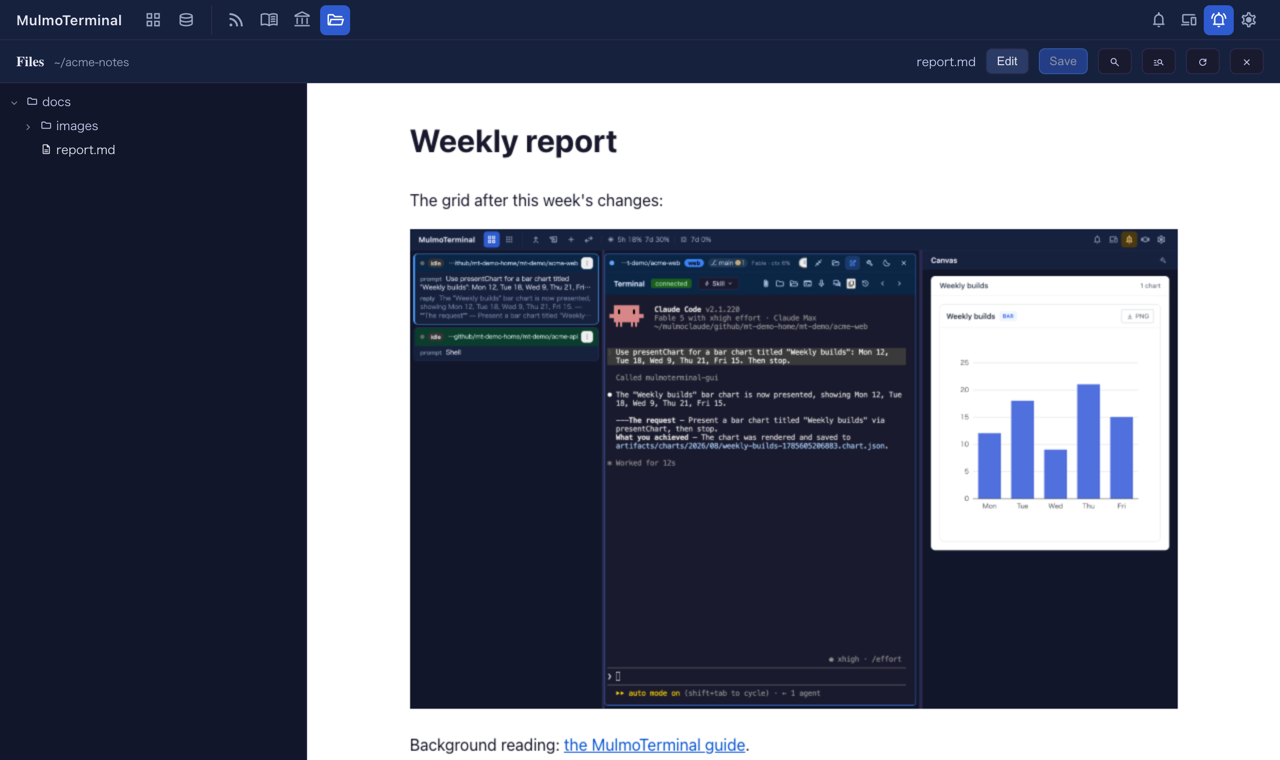
The Markdown preview
Open a .md and press Preview.
- Relative images show.
orused to be a broken image in the preview. It is now loaded from beside the document. Images whose path climbs above the directory the pane is rooted at, and images in a document opened from outside a cell’s directory, still do not show. - Front matter is not rendered as text. A YAML block between
---lines at the top (Jekyll, Hugo, Obsidian style) used to appear as a rule and a heading made oftitle: …. The preview now starts at the body. The block is dropped only when it parses as YAML — the same rule as the Canvas — so a document that simply opens with a---rule keeps it. - External links open in a new browser tab. A link to a site used to load inside the preview, where most sites show “refused to connect”. The preview stays on your document. Links to other files in the project still behave as before.
- Preview shows your unsaved edits. Pressing Preview with unsaved changes saves them first and previews the saved file. If the file changed on disk meanwhile, you stay in the editor with the usual conflict banner; if the save fails, you stay in the editor with the reason. While a save is in flight the Preview button is disabled.
How to tell it worked. Open a document that has front matter and a relative image, for example this repository’s docs/guide/en/basics.md, and press Preview: it begins at its first heading and the screenshots are there.
Mermaid diagrams and maths still show as code in this preview, by design. Use Canvas in the pane’s header for those.
Clicking a path outside the cell opens it
An agent often writes to /tmp, ~/Downloads or a neighbouring repository. Clicking such a path in the terminal used to open a page reading {"error":"path escapes the project root"}. A document now opens rendered, and source opens in the full-screen Files view rooted at the file’s own directory. Images, PDFs and videos outside the cell’s directory are still refused, as before.
One change to notice: a ~/… path is no longer opened in the pane beside the cell, even when it is inside the cell’s directory — the browser cannot tell where ~ is. It opens in a new tab instead.
Fixed: undo right after opening a file
Pressing Cmd/Ctrl+Z straight after opening a file emptied the editor (or brought back the file you had open before), marked it unsaved, and the pane then saved that when you moved on. Undo now does nothing until you have edited, and each file starts with its own history.
How to tell you have the fix. Open a file and press Cmd/Ctrl+Z: nothing changes and no ● appears.
More on the editor and how it saves: Features.