11.4.0 — A board for your issues and PRs
A snapshot as of 11.4.0 (released 2026-10-26). It will go stale as the app moves on — that is expected, and the living reference is the guide each section links to.
New features
The GitHub board (experimental)
Open the GitHub view (the toolbar’s Pull requests button, the GitHub mark) and press Open the board (experimental) (#3175). For each repository under Settings → Pull request repos, every piece of work becomes one card in one of five columns: To do, Implementing, In review, Ready (QA) and Merged. A card joins the issue, the pull request that closes it, its branch, and the terminals open on that branch.
Where a card sits:
- Implementing — a draft, a failed CI or changes requested, or a branch with a terminal on it and no pull request yet.
- In review — CI is still running, or the newest push has not been reviewed. Review 2 on a card means two pushed commits got a review.
- Ready (QA) — CI passed and the newest push was reviewed (or the pull request is approved).
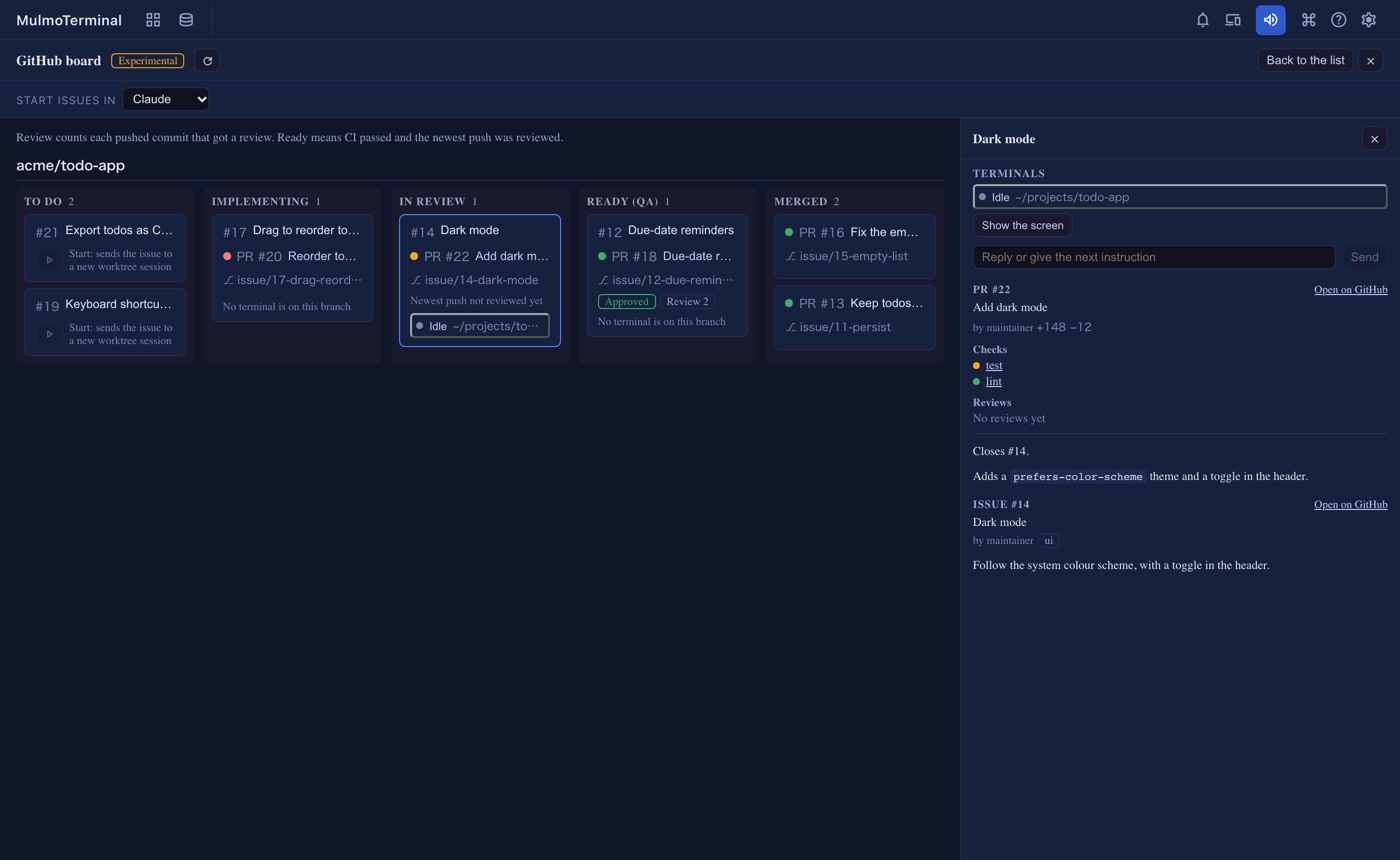
Press a card to open its details on the right: its terminals, the pull request’s checks and reviews and description, and the issue’s labels and description. Open on GitHub is inside the panel (#3178).
Start an issue from the board. A To do card has a start button. It cuts the issue’s worktree, starts the agent picked in Start issues in, and sends the issue text at once — the new terminal joins the grid behind the board, and the card moves to Implementing (#3181). On the /github list the issue text is still left for you to send, as before.
Answer a terminal from the board. Each terminal in the detail panel has Show the screen and a box, Reply or give the next instruction, which types one line and presses Enter (#3187). Whatever you had already typed in that terminal stays. When a Claude terminal asks a question with options and the question pane is switched on, the options show as buttons. A permission prompt (1. Yes / 2. No) still needs keys, so open the terminal for that.
It keeps itself current (#3183). A terminal’s state (working, waiting, idle) changes live, and a card with a terminal waiting for you gets an amber border and Waiting for you. The board reads GitHub again every minute while it is on screen, and a few seconds after one of its terminals finishes a turn. If a read fails, the cards stay and the error shows above them.
GitHub repositories only, and it needs gh signed in, like the list. More: GitHub.
Let a remote bot run a Python job here
An AI agent that runs on someone else’s server (GrokBot, for example) can now send a Python script to run on this machine — on its GPU, say — and get the output back (#3184, #3192). Nothing runs without you: each job opens a terminal that shows the script and the exact command line, and asks Run this job? [y/N]. Only a typed y runs it.
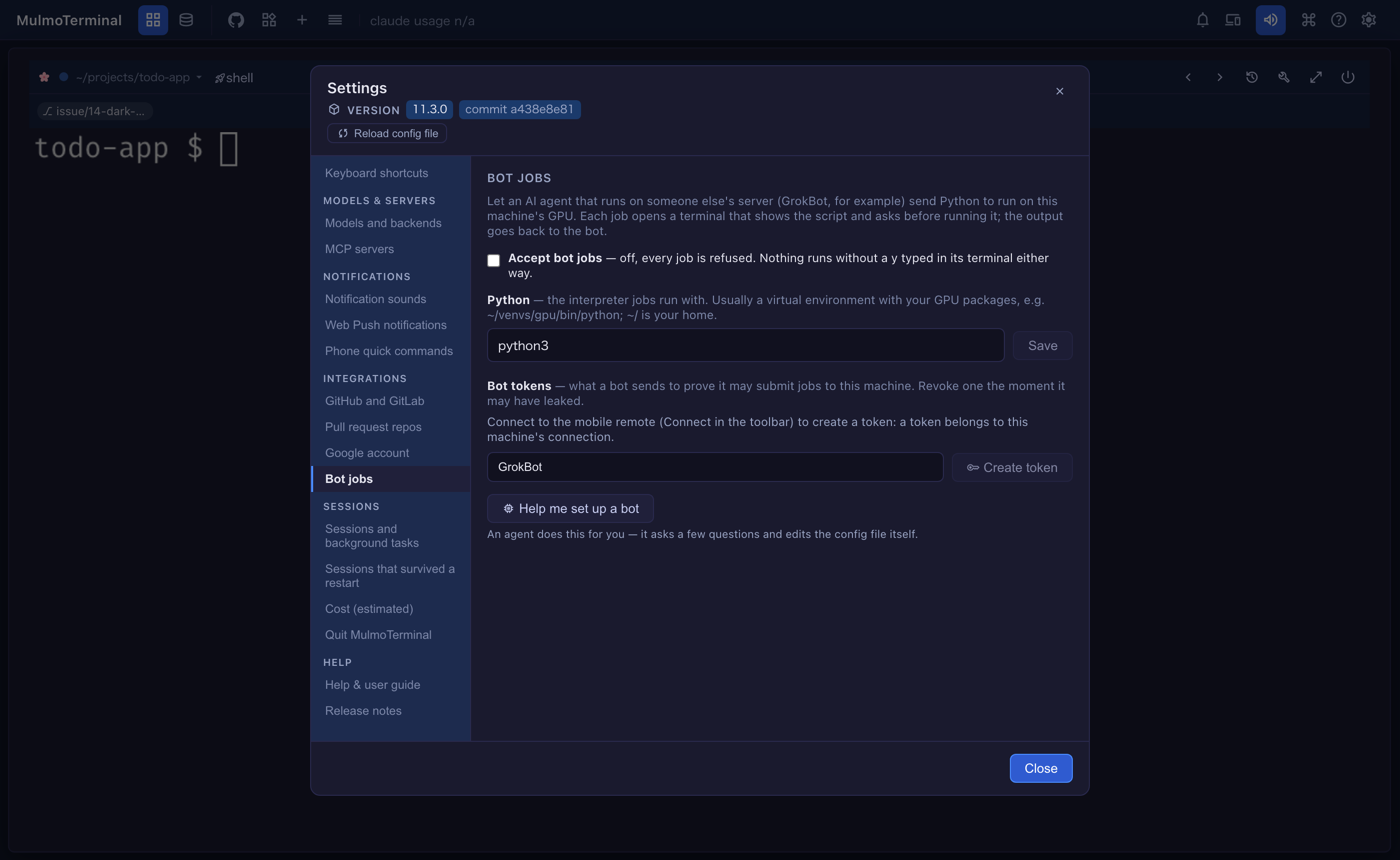
To set it up, open Settings → Integrations → Bot jobs:
- Tick Accept bot jobs. It is off until you do, and every job is refused.
- In Python, give the interpreter the jobs run with — usually a virtual environment that has your GPU packages, such as
~/venvs/gpu/bin/python— and press Save. - Connect the mobile remote (Connect in the toolbar). A token belongs to this machine’s connection, so Create token stays greyed out until then.
- Name the bot and press Create token. The secret is shown once, with a copy button and the two addresses to give the bot. Copy it then; it cannot be shown again.
Not sure which Python has the right packages? Help me set up a bot starts an agent that finds it and fills the settings in for you. Revoke a token from the same list the moment it may have leaked.
The job terminal opens even when no browser tab is open, and is kept alive until the job ends. More: Phone.
What looks different
- A shared plugin’s screen — the Canvas page’s confirmation bar and “Sent to the conversation”, markdown, chart and others — now follows the app’s display language instead of always showing English. Collections and accounting follow the language picked in the app too, rather than the browser’s (#3171).
- If you open MulmoTerminal from another machine by a name or address that is not configured, every request is now refused with a
403that names the setting to add, instead of the page loading and no terminal attaching (#3191). See Under the hood.
Under the hood
Emoji and wide characters line up
A row with an emoji, a flag, a skin tone, a family or a Korean syllable could show the rest of the row shifted a column in the browser, because the browser and tmux counted that character’s width differently. MulmoTerminal now measures how the running tmux counts each one when the server starts, and the browser counts the same way (#3174). A tab opened before the measurement ended is updated and redrawn when it arrives (#3186, #3190). On Windows the same is done for psmux (#3193), and a very long run of joined characters now wraps where tmux wraps it (#3195). Nothing to do; a terminal that was already misaligned lines up after the server restarts.
A name the server answers to
Every request has to be addressed to localhost or a name you configured in MULMOTERMINAL_HOST or MULMOTERMINAL_ALLOWED_ORIGINS (#3191). This stops a web page from reading MulmoTerminal through a DNS trick (DNS rebinding). Opening it on the same machine, or through a tunnel to localhost, changes nothing. If you bind to 0.0.0.0 and open it by a LAN address, add that address to MULMOTERMINAL_ALLOWED_ORIGINS. More: Configuration.
psmux uses less memory
On Windows with psmux 3.3.1 or later, psmux’s pool of spare shells is turned off, in new and running servers alike (#3169). No cell ever used a spare, so they only held memory and restarted on every resize. Nothing to do.
Updated libraries
The jinglescript plugin, the spreadsheet plugin, the Gemini and MCP libraries and others were updated (#3176). If you run MulmoTerminal from a clone, run yarn install after pulling.