8.0.0 — Every directory setting in a form, one click from its terminal
A snapshot as of 8.0.0 (released 2026-09-30). It will go stale as the app moves on — that is expected, and the living reference is the guide each section links to.
Nothing to configure. Everything below is already on screen, or a control inside Settings (the gear, top right). Writing .mulmoterminal.json by hand or with an agent still works — this adds a way to write the same keys, it does not replace one.
New features
Change a directory’s settings in a form
Expand a directory in Settings → Directory settings and Change here appears under the values in force (#2722). A change is saved as soon as you leave the field (or pick the colour or option) and reaches open terminals without a restart. Use global on a row takes that key out of the file.
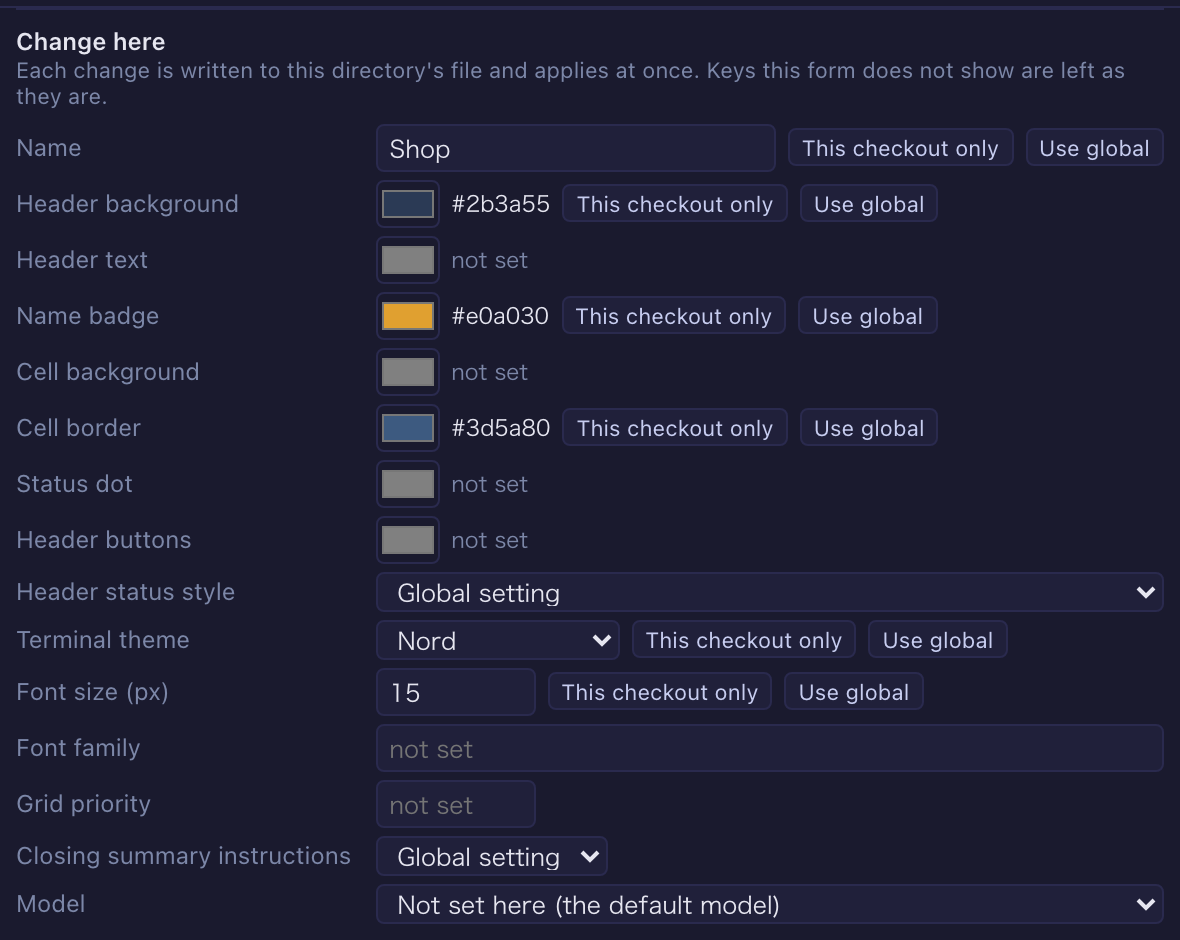
Every key the file can hold is there:
- Looks (#2733) — name, the seven chrome colours (header, cell, badge…), terminal theme, font size, font family and grid priority.
- Status colours and palette (#2737) — how the header shows a running session, its colour per status (the same editor as the global setting), and the terminal’s 23-colour palette.
- Model and reach (#2742) — the model this directory’s sessions start on (from the providers registered in the global settings that can start a session), the closing-summary switch, and extra directories sessions may read and edit.
- Pictures and sounds (#2743) — the icon (found automatically / none / an image), the terminal background (picture, strength, fit), and the attention sounds (a shipped preset or a file in the directory, also per kind).
- Header (#2746) — buttons, chips and command-palette entries, with the same editors as the global lists. A directory’s buttons are added to the global ones; its chips replace the global set.
- Lists and variables (#2750) — the skills the Skill menu offers and their order (suggested from every skill the directory can see), the Mulmo menu’s decks, and per-worktree variables (a port, or a unique name).
A save writes only the key it changes: keys the form does not show, and the file’s order, are left as they are, and the file it replaces is backed up where the Files view keeps its backups. A file that is not valid JSON is not written; the form names it so you can fix it. More in the configuration guide.
Move a key to this checkout only
With one repository cloned in several places, you may want a colour or a rank for one checkout only. This checkout only on a row moves the key into .mulmoterminal.local.json, and Share moves it back to .mulmoterminal.json (#2750). The value moves as written, and a key in the local file is marked this checkout only.
Open a directory’s settings from its terminal
Click the directory in a terminal’s header: the menu now has This directory’s settings (#2752). Settings opens on Directory settings with that directory’s row open — even a directory that is not in the recent list.
Past release notes in Settings
Settings → Release notes lists every version up to the one you run, newest first, and shows the chosen version’s setup guide (#2719) — the page the What’s new dialog shows once after an upgrade.
Two document tasks in Blueprints
- 用語をそろえる (glossary) (#2720) — collects the terms documents define, terms defined twice and words spelled more than one way into a glossary, and, when asked, puts the spellings to use into the folder’s
chaff.yaml. - 文書のフォルダに chaff を入れる (adopt) (#2740) — shelves today’s findings in a baseline so only new ones are reported, and, when asked, writes a GitHub workflow that puts them on a pull request’s lines. The workflow is offered only where the folder is a git repository (#2749).
More in the Blueprints guide.
What looks different
- Each directory in Settings → Directory settings has the Change here form above.
- Settings has a Release notes tab (in the Help group).
- A terminal’s path menu has This directory’s settings.
- The Blueprints new-build form asks the task first, and the base (where it runs) only when the task has more than one (#2741); a document task asks none.
- “This folder’s style” is offered only in a folder that has the files it needs (
STYLE.md,chaff.yaml) (#2744). - Polishing a document tells contracts and terms, regulations, and manuals apart (#2747). To try the manual kind without documents of your own, the examples gain 「手順書を手順書として整える」 (#2753).
- Shared apps say what to press at the two places a first run stops (#2738): signed out, press Connect on the toolbar’s Remote host control to sign in with Google; after switching a GUI tool, restart an open terminal for it to take effect.
- Inviting a new address to a shared app says it goes into the committed
app.json(#2736).
Under the hood
- A directory’s all-kind
soundalso takes a shipped preset (preset:<id>) (#2743). Before, a preset worked only in the per-kindsoundsand was silently ignored insound. File paths work as before. - The global header buttons and chips are saved through the same code as a directory’s (#2746), unchanged in behaviour.
- The Blueprints document tasks run chaffjs 0.16 (#2731).
- A folder the server cannot read is no longer taken for one without the file (#2745).
- A shared app’s headless trial run no longer stops when its preview frame is replaced (#2730).
- The guide has a page on turning a collection into an app (#2718).
- The FAQ explains that a Claude Code conversation moved to the background continues under a new session id, and how to find it (#2739).
Nothing here needs doing.