7.0.0 — What changed in the Files pane, and a command palette that learns what you use
A snapshot as of 7.0.0 (released 2026-09-29). It will go stale as the app moves on — that is expected, and the living reference is the guide each section links to.
Nothing needs configuring. The only optional step is writing palette aliases and favorites in the config file, below.
The Files pane shows what changed
Enlarge a cell and open its Files pane (the path menu’s Browse files in the app, or the folder toggle), as before.
In the tree, inside a git repository, a changed file carries a letter and a colour: M (amber) modified, A added, U untracked and R renamed (green). A folder holding a change carries an amber dot, so a collapsed tree still says where an agent has been writing. It refreshes when the tree loads or is reloaded, when a file is saved, and every 30 seconds while the page is visible.
In the editor, a bar beside the line numbers marks what changed since the last commit: green for new lines, amber for changed ones, and a notch where lines were removed. It follows your typing. Press Changes in the pane’s header to see the removed lines in place, as a diff; press it again to hide them. A file that is new or outside git has no marks and no Changes button.
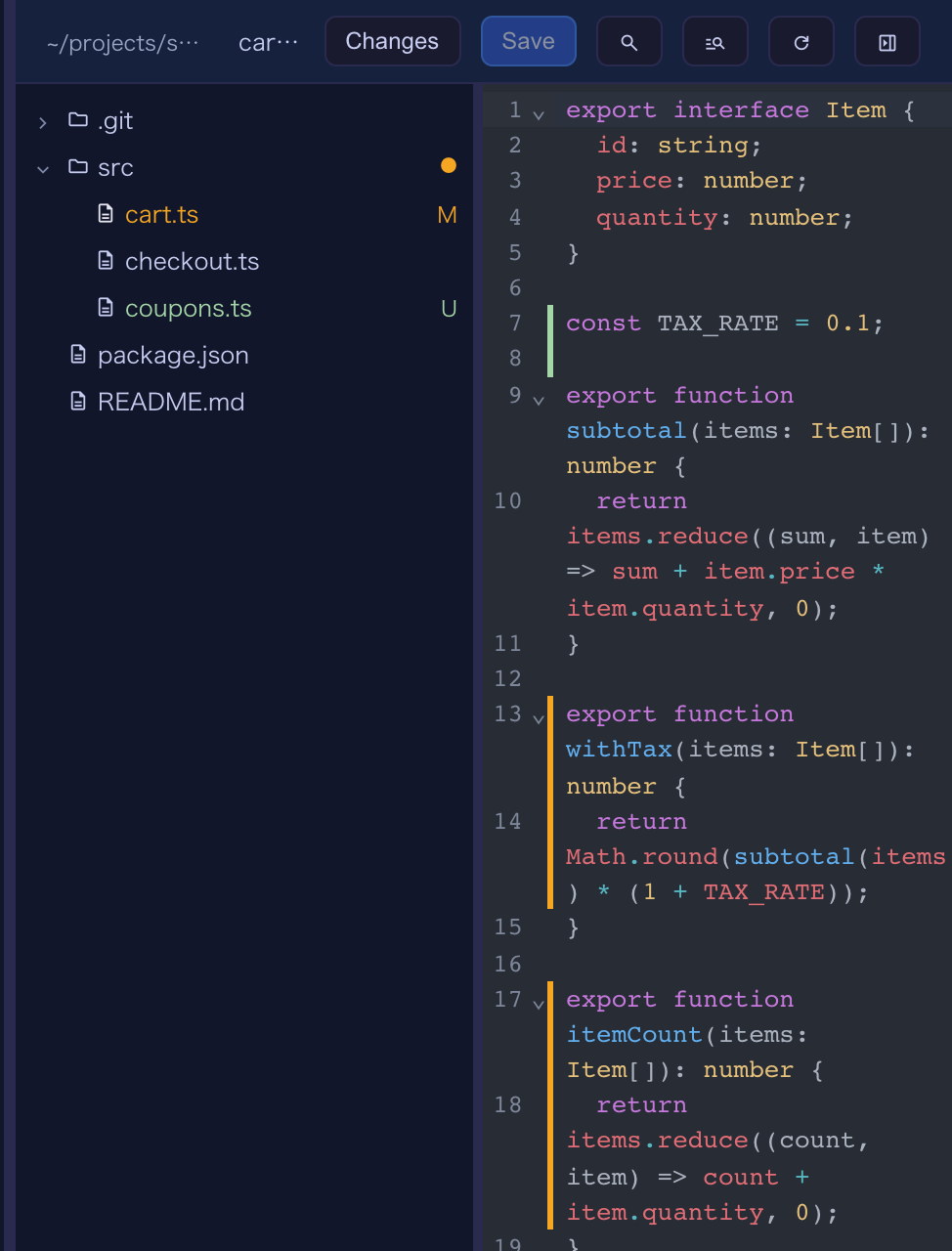
Also in the pane:
- The tree follows the tab in front. Switching tabs (or opening a file from a link or a path in the terminal) opens that file’s folders and brings its row into view.
- The tree can be resized. Drag the line between the tree and the editor, or focus it and use the arrow keys, Home and End. The width is remembered. A name too long for the tree shows in full when you hover it.
How to tell you have it: open the pane in a repository with an uncommitted change — the file shows M and its changed lines have a bar.
Living guide: Editing files beside a terminal.
The command palette learns what you use
Open the palette with its key or the toolbar’s Commands button, as before.
New rows:
- PRs and Issues. Where the GitHub view is set up (Settings → Pull request repos), the open PRs and Issues of those repos are listed as “PR #12: …” / “Issue #34: …”, found by title, repo or number. Picking one opens it in a new tab (GitHub, or GitLab for a GitLab repo). Type the number bare (
12) or after the repo (app#12): a leading#searches file contents. The list is read on the first opening and reused for a few minutes. - Your past prompts. The recent prompts sent in the terminal the palette acts on are listed, newest first, as “Prompt:
", found by any of their text. Picking one brings that terminal forward and puts the prompt back at its input **without sending it**, so you can edit it first.
Ordering. Rows you pick often and recently come first — with nothing typed, and among rows that match equally well. A worse match is never lifted over a better one. This is remembered per browser, only once a pick has actually run, and not for rows that point somewhere different next time (terminals, launchers, a terminal’s commands, collection actions, Wiki pages, the sound switch, past prompts, and the / / # rows).
A second panel of actions — press Tab. With a row selected, Tab shows what else you can do with it: Run, Add to favorites / Remove from favorites, and Copy its key. Esc (or Shift+Tab) goes back to the rows.
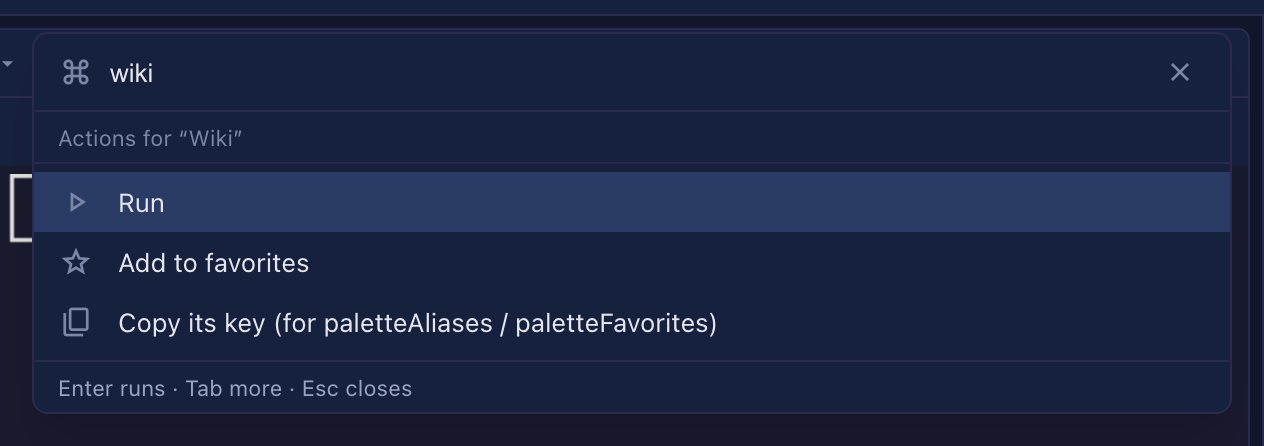
Aliases and favorites (optional). Both live in the global config, ~/.mulmoterminal/config.json, and name a row by its key — which the second panel’s Copy its key gives you:
{
  "paletteAliases": { "wk": "screen:wiki", "z": "zoom-toggle" },
  "paletteFavorites": ["screen:wiki", "settings:theme"]
}
- Typing an alias exactly (case and surrounding spaces do not count) puts its row first.
- With nothing typed, favorites come first, in the order written. Add to favorites in the second panel writes this list for you, one entry at a time, keeping entries added elsewhere.
- Merge these into your existing file rather than replacing it, then restart the server and reload the tab. A key that names no row is ignored.
The mulmoterminal-keys skill has the full table of row keys and can write these for you.
Living guide: Keyboard shortcuts (keymap), whose command-palette row describes the palette.
Fix: the Run / Skill / Mulmo menus stay inside the window
In a session cell’s second header row, the Run, Skill and Mulmo dropdowns opened in place, so near the cell’s right edge they were cut off. They now open under their button, kept inside the window, and a long list scrolls without closing. To check, open Skill on the rightmost cell of a row.
Blueprints: from a collection’s records, to Firebase, and from a shared app
- Records come along. A build from a collection can copy its records, and the images and files they point at, and move them into the local app. The move is checked by machine against the source. Records may hold personal data, so the question has no default.
- Firebase too. The same build runs on the Firebase base: records go to Firestore and files to Cloud Storage, into the emulators first, then into production after a second approval, with your own Google sign-in.
- A shared app as the source. A folder with an
app.jsonand shared collections is listed under Shared apps in the source picker, and its declaration of who may do what is carried into the spec. - Smaller fixes. A later step hears what you decided in an earlier one; an answer or a review names a place the way the document does (“Section 3.2”, 「…」) instead of chaff’s address; a build does not start in, or write through, a
.blueprintfolder that is a link; the guide says which language the screen and the packs use; the document packs run chaff 0.13.
Living guide: From a collection to an app.